Google Cloud Storage
Setting up credentials and a Google Cloud Storage bucket for Scheduled Data Exports



This article walks you through configuring a Google Cloud Storage destination for Scheduled Data Exports. You'll create a bucket, choose how RevenueCat authenticates to it, and supply the credentials to the integration in the dashboard.
Once you've configured the Google Cloud Storage integration in RevenueCat, allow up to 24 hours before the first file is delivered.
Choose a credential type
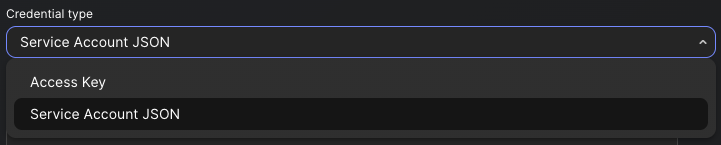
RevenueCat supports two ways to authenticate against Google Cloud Storage. Pick the one that best matches your security posture:
- Service Account JSON. A Google-native service account key. Recommended for new integrations because it uses GCP's native IAM model.
- HMAC Access Key. A long-lived access key and secret tied to a service account. Useful if you already have HMAC credentials set up or need to share the same flow with S3.
You can change the credential type later from the integration settings without losing the rest of your configuration.
Receive new and updated transactions only
When configuring the deliveries, you have the option to receive a full export daily or only new and updated transactions from the last export. The first delivery will always be a full export even if this option is selected.
Setting up Service Account JSON credentials
The steps below create a Google Cloud service account scoped to your export bucket, then download its key file. Once you have the JSON key, paste its contents into the integration's Credentials section in the dashboard with Credential type set to Service Account JSON.
1. Create a service account
In the Google Cloud console, open IAM & Admin → Service Accounts and click Create service account. Give it a descriptive name (for example RevenueCatExportsSA) and a short description.
2. Grant bucket-scoped roles
You should only give RevenueCat access to the bucket where deliveries will land — not project-wide storage permissions. Open your destination bucket in Cloud Storage, go to the Permissions tab, and grant the service account the following roles:
- Storage Legacy Bucket Reader (
roles/storage.legacyBucketReader) — required so RevenueCat can verify the bucket exists when you save the integration. The object-level roles below don't include thestorage.buckets.getpermission this check needs. - Storage Object Viewer (
roles/storage.objectViewer) - Storage Object Creator (
roles/storage.objectCreator)
If you'll also let RevenueCat overwrite existing exports, use Storage Object Admin (roles/storage.objectAdmin) instead of Object Viewer + Object Creator. You still need Storage Legacy Bucket Reader either way.
3. Create and download a JSON key
Back in IAM & Admin → Service Accounts, open the service account you just created, switch to the Keys tab, and click Add key → Create new key. Choose JSON and download the file.
The downloaded file contains a private key that grants whoever holds it the service account's permissions. Don't commit it to source control or share it outside the team configuring the integration.
4. Paste the JSON into RevenueCat
In the integration's Credentials section, set Credential type to Service Account JSON and paste the full contents of the downloaded file into the Service Account JSON field. Enter the bucket name as usual and save.
Setting up HMAC Access Key credentials
HMAC authentication uses a service-account-scoped access key and secret, similar to S3. Once you have the key pair, paste it into the integration's Credentials section with Credential type set to HMAC Access Key.
1. Create or reuse a service account
If you don't already have one, follow Step 1 and Step 2 of the Service Account JSON flow to create a service account with Storage Legacy Bucket Reader, Storage Object Viewer, and Storage Object Creator roles on your destination bucket.
2. Generate an HMAC key for the service account
In the Google Cloud console, go to Cloud Storage → Settings → Interoperability. Under Access keys for service accounts, click Create a key for a service account and pick the service account from Step 1. Google generates an Access key and Secret.
Refer to Google's HMAC keys documentation for the latest UI walkthrough.
3. Paste the credentials into RevenueCat
In the integration's Credentials section, set Credential type to HMAC Access Key and paste the access key and secret. Enter the bucket name as usual and save.
We recommend service account HMAC keys over user account HMAC keys. The service account must have Storage Legacy Bucket Reader, Storage Object Viewer, and Storage Object Creator on the destination bucket.