Configuring Experiments



Before setting up an experiment, make sure you've created the Offerings you want to test. This may include:
- Creating new Products on the stores
- Setting Offering Metadata, and/or
- Creating a RevenueCat Paywall
You should also test the Offerings you've chosen on any platform your app supports.
Setting up a new experiment
First, navigate to your Project. Then, click on Experiments in the project sidebar.
You have two options for creating a new experiment:
Creating a new experiment from scratch
Select New experiment to create a new experiment from scratch.
If you've not setup multiple offerings yet, you'll be prompted to do so now, since you'll need at least 2 available offerings to run an experiment.
For App Store apps, we recommend setting up new products to test as a new Subscription Group in App Store Connect so that customers who are offered those products through Experiments will see only that same set of products to select from their subscription settings.
Duplicating an existing experiment
You can also create a new experiment by duplicating the configuration of a previous experiment. This is useful when you want to run a similar test with slight modifications or test the same configuration on a different audience.
To duplicate an experiment:
- Find the experiment you want to duplicate in your experiments list
- Click on the context menu (three dots) next to the experiment
- Select Duplicate from the menu
- A new experiment will be created with the same configuration as the original
- You can then modify any settings as needed before starting the duplicated experiment
Duplicating is particularly useful when you want to:
- Re-run a successful experiment on a different audience or time period
- Test slight variations of a previous experiment configuration
- Quickly set up similar experiments without manually configuring all settings again
Regardless of which method you choose, you'll need to configure the experiment settings as described below.
Fields
To create your experiment, you must first enter:
- Experiment name: A descriptive name for your test
- Experiment type (optional): Choose from preset types (Introductory offer, Free trial offer, Paywall design, Price point, Subscription duration, Subscription ordering, or Other) to get relevant default metric suggestions
- Notes (optional): Add markdown-formatted notes to document your hypothesis and track insights
- Variant A (Control): The Offering(s) for your control group (baseline)
- Variant B (Treatment): The Offering(s) for your first treatment group
Adding more variants for multivariate testing
You can add up to 2 additional treatment variants:
- Variant C (Treatment): Optional second treatment variant
- Variant D (Treatment): Optional third treatment variant
Multivariate experiments allow you to test multiple variations against your control simultaneously, helping you identify the best-performing option more efficiently than running sequential A/B tests.
Using Placements in Experiments
Placements allow you to define a unique Offering to serve at each paywall location in your app, so that you can do things like:
- Show a unique paywall design at the end of onboarding vs. in settings
- Offer unique prices on the paywall triggered when a customer attempts to access a gated feature vs. the paywall that's triggered after a certain number of app opens
If you've not setup Placements yet, start here.
With Experiments, you can create A/B tests that serve unique Offerings at each Placement to your Control group and Treatment group.
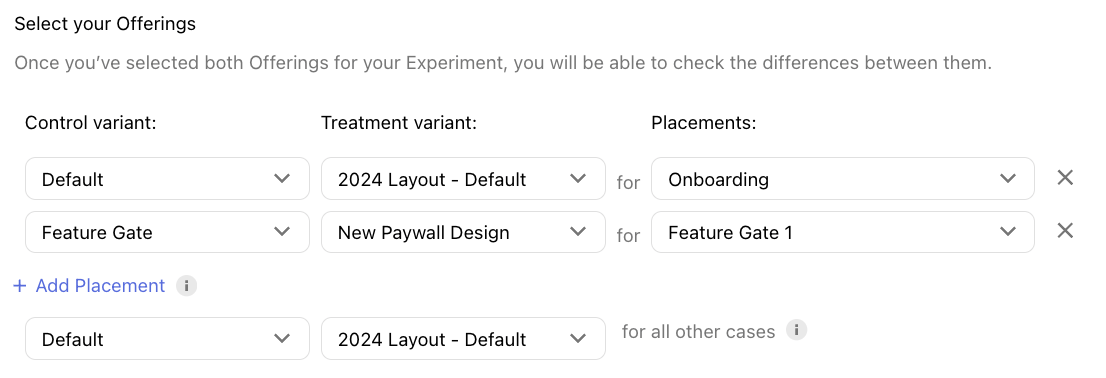
With Placements, your customers will be served an array of Offerings depending on the paywall location they visit, and with Experiments you can A/B test that experience by changing any element of that array.
If you're looking to isolate the impact of changing just one paywall location, then modify the Offering being served at that Placement in the Treatment group and keep all other Placements the same. But be sure to specify your desired Offering for each Placement that your app uses, even if the Offering for a given Placement should be the same on both the Control and Treatment.
Enrollment
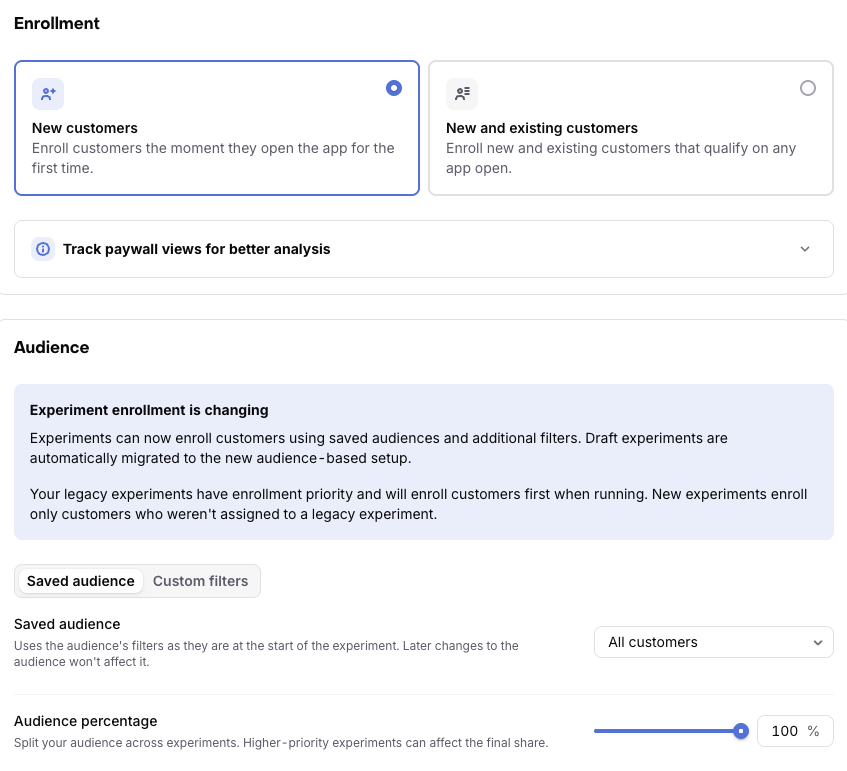
Enrollment type
Choose which customers to enroll in your experiment:
- New customers: Enroll customers the moment they open the app for the first time. This is the default behavior and doesn't require any minimum SDK version.
- New and existing customers: Enroll new and existing customers that qualify for the experiment on any app open. This allows you to test changes on your entire qualifying user base, not just first-time users.
Enrolling new and existing customers requires specific SDK versions. This rule is automatically applied and can't be edited when selecting this enrollment type.
Audience
The Audience section defines which customers are eligible for the experiment. Experiments use the same filters as Audiences, so you can target customers by country, platform, app, app version, SDK version, custom attributes, purchase history, and more.
Choose one of two options:
- Saved audience: Select an audience you've saved in Customers → Audiences, or select All customers to make every customer eligible. All customers is the default.
- Custom filters: Build filters for this experiment only. Use Add condition to narrow a group, and Add group to add another set of conditions. Customers match the experiment if they match any group.
For example, to test a new price with customers on recent versions of both your iOS and Android apps, create two groups: one for your iOS app with its minimum app version, and one for your Android app with its minimum app version. Customers who match either group are eligible.
While you set up the experiment, RevenueCat shows how many customers match the audience and estimates how long the experiment needs to run.
When you start an experiment, RevenueCat saves a snapshot of its audience filters. Enrollment uses that snapshot for the rest of the experiment, so editing or deleting a saved audience later doesn't change who a running experiment enrolls. The experiment details show the snapshot's date next to the audience name.
Experiments that enroll only New customers check a customer's eligibility once, the first time they open your app. Filters that depend on data a brand-new customer doesn't have yet, such as purchase history or custom attributes you set later, won't match at that moment. To target by that kind of data, choose New and existing customers.
Audience percentage
Set the Audience percentage to control how much of the matching audience the experiment enrolls (minimum 10%). Enrolled customers are split evenly between all variants. For example, an A/B test (2 variants) that enrolls 10% of its audience puts 5% in the Control group and 5% in the Treatment group. A 4-variant multivariate test enrolling 20% puts 5% in each variant.
If other experiments rank higher in enrollment priority, they enroll their share of customers first, so this experiment can receive a smaller share of the audience than its percentage suggests.
Matching customers who fall outside the audience percentage aren't enrolled in this experiment. RevenueCat checks them against the next experiment in enrollment priority. If no experiment enrolls them, they receive the Offering from your targeting rules or your default Offering.
Estimating experiment duration
Before you start an experiment, RevenueCat estimates its size and duration based on your audience, enrollment type, audience percentage, and variants:
| Stat | Description |
|---|---|
| Matching customers (last 7 days) | How many customers matched the audience over the last 7 days. |
| Customers per variant (last 7 days) | How many of those customers each variant would have received, after the audience percentage split. |
| Customers required per variant | How many customers each variant needs to detect the effect you're looking for. |
| Estimated experiment duration | An estimate of how many days the experiment needs to run to enroll enough customers to detect your Minimum Detectable Effect. |
The required customers and duration are only estimated when the primary metric is Initial conversion rate, Trial conversion rate, or Conversion to paying. For other primary metrics, you see only the matching customer counts.
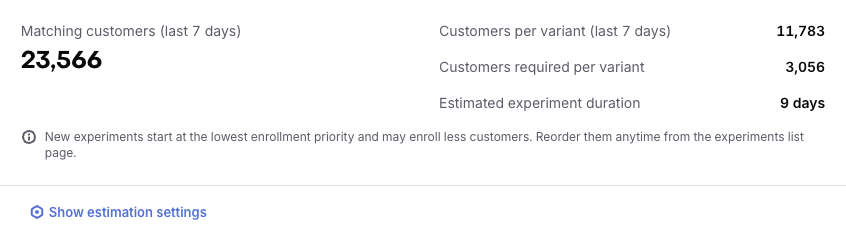
To adjust the estimate, click Show estimation settings:
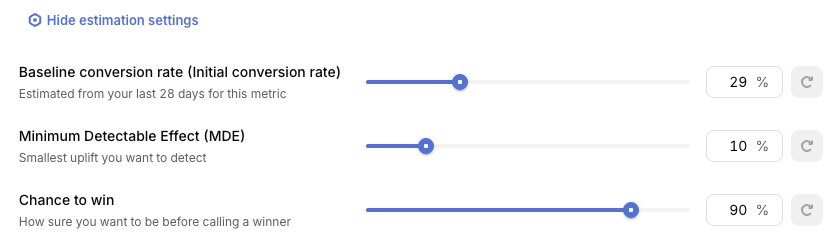
- Baseline conversion rate: The current conversion rate for your primary metric, estimated from your last 28 days.
- Minimum Detectable Effect (MDE): The smallest uplift you want to detect. Smaller effects need more customers.
- Chance to win: How sure you want to be before calling a winner. Higher values need more customers. Learn more about Chance to win.
To restore a setting's original value, click the reset button next to it.
New experiments start at the lowest enrollment priority, so experiments above them may enroll some matching customers first. Expect the actual duration to be longer if other running experiments share this audience.
When you're done, select Start experiment to start enrolling customers, or Save to keep the experiment as a draft. You can save a draft before you've finished choosing its audience.
Customers created via the REST API
When the experiment enrollment setting is "New customers only", RevenueCat enrolls customers in experiments when they are first created from the SDK.
Creating a customer directly through our REST API creates the customer before the SDK runs and without SDK metadata. As a result, the customer already exists and is no longer treated as “new,” so they are never enrolled.
To ensure customers are enrolled in experiments, let the SDK create customers first. Use our REST API only after the SDK has confirmed the customer exists in RevenueCat through configure or logIn calls on the device.
If your experiment's enrollment type is set to New and existing customers (not just new customers), eligible existing customers will be enrolled in the experiment when the SDK next requests offerings. This requires supported SDK versions.
Required SDK versions for existing customer experiments
Experiments targeting new and existing customers require that your app uses a supported SDK version. Customers on older SDK versions won't be enrolled. This requirement ensures your app can report paywall views, which power the Paywall view filter on your results.
| SDK | Minimum Version |
|---|---|
| iOS | 5.66.0+ |
| Android | 9.26.1+ |
| Flutter | 9.15.0+ |
| React Native | 9.14.0+ |
| KMP | 2.9.0+ |
| Capacitor | 12.3.0+ |
| Unity | 8.8.0+ |
| Web (JS) | 1.55.0+ |
If you're using a custom paywall (not RevenueCat Paywalls), you must call trackCustomPaywallImpression when your paywall is displayed. Without this call, enrolled customers will appear as not having viewed a paywall. For experiments that enroll new and existing customers, they will also be excluded from the default results view. See Tracking Custom Paywall Impressions for implementation details.
Starting an experiment
When viewing a new experiment, you can start, edit, or delete the experiment.
- Start: Starts the experiment. Customer enrollment and data collection begin immediately and results appear in real time. New experiments start at the bottom of the enrollment priority list.
- Edit: Change the name, enrollment type, audience, or Offerings in an experiment before it's been started. After it's been started, you can still edit the name, notes, audience percentage, and primary and secondary metrics while it's running or paused.
- Delete: Deletes the experiment.
Test users are still placed into experiment Offering variants. Sandbox and TestFlight paywall views and purchases aren't included in results. See Sandbox and TestFlight.
To check that a paywall can display the Offerings in your experiment, use an Offering Override for a specific customer instead of relying on experiment results.
Pausing an experiment
Once an experiment is running, you can pause it to stop enrolling customers while continuing to collect data from existing participants. This is useful when you want to:
- Evaluate the long-term impact of experiment exposure on already enrolled customers
- Stop exposing additional customers to test variants while maintaining consistent behavior for existing participants
- Temporarily halt enrollment while analyzing preliminary results
When paused:
- No additional customers will be enrolled in the experiment
- Customers already enrolled will continue to see their assigned variant
- Data collection continues for all enrolled customers
- Results will continue to update with data from existing participants for up to 400 days
Resuming a paused experiment
You can resume a paused experiment to start enrolling customers again by clicking the Resume button. Paused experiments keep their place in the enrollment priority list, so a resumed experiment enrolls customers at the same priority as before.
Before resuming a legacy experiment, RevenueCat checks whether it conflicts with any running legacy experiments. If resuming would cause audience overlap, you'll see an error message and will need to either pause or stop the conflicting experiments first.
Stopping an experiment
Once an experiment is running or paused, you can permanently stop it by clicking the Stop button. This is appropriate when you want to:
- End the experiment after a clear winner has emerged and you're ready to implement the results
- Stop a poorly performing experiment to prevent further negative impact
- Free up enrolled customers so they can be enrolled in other experiments
- Conclude an experiment that has run its full planned duration
Pausing is reversible - you can resume the experiment later. Stopping is permanent - the experiment can't be restarted. Consider pausing instead of stopping if you might want to resume enrollment in the future.
When an experiment is stopped:
- No additional customers will be enrolled.
- Customers who were enrolled will begin receiving the Default Offering on their next paywall view.
- Results will continue to refresh for 400 days after the experiment has ended.
Renewals from customers who enrolled while the experiment was running can still appear; new subscriptions and one-time purchases started after the experiment ended aren't included.
Rolling out a winner
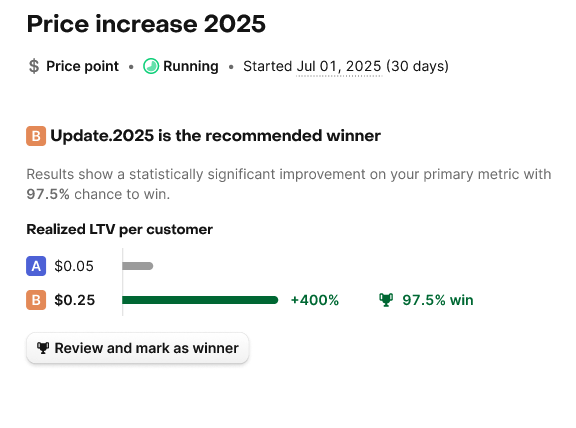
Once you've identified a winning variant from your experiment results, you can roll it out to all your users. RevenueCat provides several options for applying your experiment results:
Rollout options
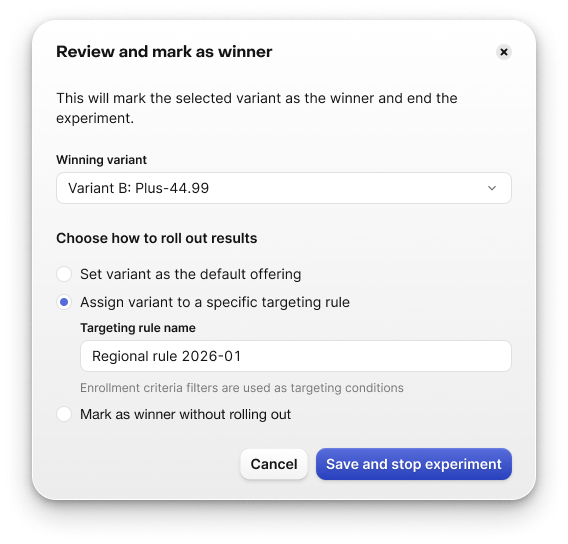
When you mark a variant as the winner, you can choose from these rollout strategies:
- Set as default offering: The winning variant's offering becomes your project's default offering, served to all customers who aren't targeted by specific rules
- Create targeting rule: Create a new targeting rule that serves the winning offering, and its placements, to the experiment's audience. The rule is added at the top of your live targeting rules.
- Mark winner only: Record which variant won without immediately changing your offering configuration - useful for tracking insights and planning future rollouts
How to roll out a winner
- Navigate to your experiment's results page
- Review the performance data to identify the winning variant
- Click Review and mark as winner
- Select your preferred rollout option
- Confirm the rollout
| Winner recommendation | Rollout options |
|---|---|
 |  |
After rolling out a winner, your experiment results will continue to get updated for 400 days, allowing you to track long-term performance and learn from your test. However, any customers enrolled in the experiment will get served their default offering once you stop the experiment. To keep collecting data for the experiment with the offering assignment of the experiment, pause the experiment instead.
Running multiple experiments simultaneously
You can run multiple offering experiments at the same time, including experiments with overlapping audiences. A customer is enrolled in only one offering experiment at a time, and stays in it while it's running or paused. When the experiment stops, the customer can be enrolled in another one.
Enrollment priority
On the Experiments page, offering experiments are listed in enrollment priority order. When a customer qualifies for enrollment, RevenueCat checks the running experiments from top to bottom:
- If the customer matches the experiment's audience and falls within its audience percentage, they're enrolled in that experiment.
- If they don't match the audience, or fall outside the audience percentage, RevenueCat checks the next experiment.
- If no experiment enrolls the customer, they receive the Offering from your targeting rules or your default Offering.
New experiments start at the bottom of the list. To change the order, click Order experiments, drag the experiments into the order you want, and click Save order. Paused experiments keep their priority but don't enroll customers until they're resumed.
For example, suppose Experiment 1 targets 50% of customers in Brazil, and Experiment 2, below it, targets 100% of all customers. Half of the eligible customers in Brazil enroll in Experiment 1. The other half, plus every eligible customer outside Brazil, enroll in Experiment 2.
Experiments built as a step in a funnel only enroll customers who reach that step. They aren't part of the enrollment priority list.
Once an experiment has started, you can't change its audience, enrollment type, or variants. Editing them would change the nature of the test, rendering its results invalid. You can still edit the name, notes, metrics, and the audience percentage while it's running or paused.
Legacy experiments
Experiments started before audience-based enrollment use legacy enrollment criteria: country, app, app version, RevenueCat SDK version, platform, and custom attributes. They're labeled Legacy on the Experiments page.
Running and paused legacy experiments keep working as before:
- They always enroll customers before audience-based experiments, and can't be reordered in the enrollment priority list. Audience-based experiments only enroll customers who weren't assigned to a legacy experiment.
- You can still pause, resume, and stop them. They aren't migrated to audiences, and their results remain available.
When you start a draft experiment that still uses legacy criteria, RevenueCat automatically converts its criteria into equivalent custom filters. Once you start an experiment that uses a saved audience or custom filters, all new experiments in the project use audience-based enrollment.
How legacy experiments handle overlapping audiences
Multiple legacy experiments can run at the same time if:
- Their audiences are mutually exclusive, or
- Their audiences are identical, and their audience percentages add up to 100% or less.
These rules only apply between legacy experiments. Experiments that use a saved audience or custom filters aren't affected by them. If resuming a legacy experiment would break these rules, the dashboard shows a conflict and blocks it. For example, if Experiment A enrolls 100% of customers for your App Store app and Experiment B enrolls 100% of customers in Brazil, the two can't run at the same time: customers using your App Store app in Brazil match both.
Limitations and edge cases
These constraints cover what you can edit after an experiment starts, plus enrollment and platform limits that affect setup. For sandbox and TestFlight behavior in results, and for unexpected products or attribution (including aliasing and transfers), see Limitations and edge cases on the Experiments Results page.
Configuration after start
Once an experiment has started (or while it is paused), most configuration is locked so results stay statistically valid:
| Change | Allowed? |
|---|---|
| Audience percentage | Yes, while the experiment is running or paused. |
| Offerings / products on a variant | No. Stop and create a new experiment. |
| Add a variant | No. Stop and create a new experiment. |
| Enrollment type or audience (saved audience, custom filters, new vs existing) | No. Edits to a saved audience don't affect experiments that already started. |
| Name, notes, and primary/secondary metrics | Yes, at any time after the experiment starts. |
| Resume after pause | Yes. You can pause and resume an experiment an unlimited number of times. |
| Restart after stop | No. Duplicate the experiment to continue testing with the same Offerings. |
Platforms and versions
To target different app versions for each app in a single experiment, use custom filters with one group per app, each combining the app with its app version condition.
Enrollment: customers created via the REST API
Customers created through the Developer API before the SDK aren't enrolled in experiments, which can make enrollment counts look lower than trials or paywall views in other tools. See Customers created via the REST API.
FAQ
| Question | Answer |
|---|---|
| Can I run multiple experiments simultaneously? | Yes. Audiences can overlap: each customer is enrolled in at most one offering experiment, chosen by enrollment priority. |
| Can I add multiple Treatment groups to a single test? | Yes, experiments support up to 4 variants total: 1 Control (Variant A) and up to 3 Treatment variants (B, C, D). |
| Can I enroll existing customers in an experiment? | Yes. Choose New and existing customers when creating the experiment. Your app must use an SDK version that supports experiments for existing customers. Existing customers that qualify enroll on their next app open. |
| What's the difference between pausing and stopping an experiment? | Pausing temporarily stops new enrollment; existing participants keep their variant and you can resume later. Stopping permanently ends enrollment; existing participants see the Default Offering on their next paywall view and the experiment can't be restarted. Both continue collecting data for up to 400 days. See Pausing and Stopping. |
| Can I pause an experiment multiple times? | Yes. You can pause and resume as needed. Pausing only affects future enrollments; already enrolled customers keep their variant and continue to be tracked. |
| How do paused experiments affect enrollment priority? | Paused experiments keep their place in the priority list but don't enroll new customers. Customers already enrolled keep their variant. For legacy experiments, RevenueCat checks for overlap with running legacy experiments when you resume. |
| Can I duplicate an experiment? | Yes. Use the context menu on the experiments list. The duplicate starts as a new draft with the same configuration. |
| What happens after I pick a winner? | You can set the winning Offering as default, create a targeting rule for specific audiences, or mark a winner without rolling out yet. See Rolling out a winner. |
| How many variants should I use in my experiment? | Start with 2 variants (A/B) for most cases. Use 3–4 when you have multiple distinct hypotheses. More variants need more customers to reach significance. |
| What experiment type should I choose? | Choose the preset that best matches what you're testing. Presets suggest default metrics (for example "Price point" → revenue metrics). You can customize metrics after selecting a type. |
| What's the difference between "New customers" and "New and existing customers"? | New customers enrolls only customers seen for the first time after the experiment starts. New and existing customers also enrolls existing customers and requires supported SDK versions. |
| Do I need to do anything in my app for existing customer experiments? | RevenueCat Paywalls track paywall views automatically. For a custom paywall, call trackCustomPaywallImpression when the paywall is displayed — see Tracking Custom Paywall Impressions. Without that call, enrolled customers won't be marked as having viewed a paywall and are excluded from the default results view. |
| Can I reuse an audience from the Customers page? | Yes. Choose Saved audience and select it. RevenueCat takes a snapshot of its filters when the experiment starts, so later edits to the audience don't affect the running experiment. |
| What happens to my legacy experiments? | Running and paused legacy experiments keep enrolling customers, before any audience-based experiment. Draft experiments with legacy criteria are converted to custom filters when you start them. See Legacy experiments. |