Targeting
Create rules that serve each audience of customers its own Offerings.



Targeting lets you serve different Offerings to different customers to maximize customer lifetime value and paywall effectiveness. Instead of serving a single Default Offering to everyone, you create rules that pair an audience with the Offerings to show at each Placement in your app. You can also schedule rules to start and end at future dates.
Targeting uses the same filters as Audiences. You can target customers by country, app version, and custom attributes, and also by subscription status, purchase history, total spend, attribution data, and more. Save an audience once in Customers → Audiences and reuse it across rules, or build custom filters for a single rule.
Targeting is available on Pro and Enterprise plans. Click here to review your plan and consider upgrading.
Terminology
| Term | Definition |
|---|---|
| Offering | The set of Packages, metadata, and an optional paywall UI you can create to remotely control your paywall experience. |
| Default Offering | The Offering that is set as "Default" in the RevenueCat Dashboard for your Project. We recommend designing your app so that the paywall always shows a customer's Current Offering, which will be your Project's Default Offering if they don't match any Targeting Rule. |
| Placement | A custom paywall location you can define in your app to serve an Offering in. (e.g. an onboarding_end Placement and a feature_gate Placement) |
| Targeting | The ability to assign distinct Offerings to a distinct audience of customers based on Targeting Rules you create. |
| Targeting Rule | An audience paired with the Offerings, and optionally Placements, to serve to customers in that audience. |
| Filters | The criteria that define an audience, such as country, app version, subscription status, or custom attributes. Filters in the same group must all match; separate groups match if any one of them does. |
| Custom attributes | Arbitrary attributes (key/value pairs) that you can set for your customers and reuse to define business-specific audiences. |
| Audience | The customers a Targeting Rule applies to. A rule targets All customers, a saved audience from Customers → Audiences, or custom filters that belong only to that rule. |
| Live | The Targeting Rules that are actively being used to determine which customers receive Offerings, as determined by their audiences, assessed in order from top to bottom. |
| Scheduled | The Targeting Rules that are scheduled to be automatically made Live at their scheduled Start Date. |
| Inactive | The Targeting Rules that are not actively being used. These may be drafts, rules you previously used, rules you intend to set live in the future, etc. |
How Targeting works
Before you setup any Targeting Rules, if you use Offerings, here's how they're returned in your app:
- RevenueCat is initialized
- Offerings are fetched
- Your list of Offerings is returned, along with the identifier of the Current Offering for a given customer
As long as your app is setup to display a customer's Current Offering on your paywall, then you can change the Default Offering that gets provided for a customer at any time from our Dashboard, or run an Experiment to serve two different Offerings to specific audiences.
Once you setup Targeting Rules, you unlock an additional level of customization, because the Current Offering that gets returned for each customer will be based on the Rule they qualify for. For example:
- RevenueCat is initialized
- Offerings are fetched
- Your list of Offerings is returned, along with the identifier of the Offering for the first rule that the customer matched as the Current Offering for that customer
- If the customer does not match any specified rules, they'll receive the Default Offering for your Project.
In December 2023 we began referring to a Project's current Offering as it's default Offering. Learn more here.
When determining which (if any) Targeting Rule a customer matches, we'll assess them from top to bottom as you've ordered them in the Dashboard.
Creating Targeting Rules
Open Targeting in your Project's sidebar, then click New rule.
Then, create your rule:
- Enter a Display name.
- Under Audience, set Audience source to choose who the rule applies to:
- Saved audience: in the Saved audience dropdown, select All customers or an audience you've saved in Customers → Audiences.
- Custom filters: click Add filter to build filters for this rule only. Click + Save audience if you want to reuse them in other rules. Learn more in Choosing an audience.
- Review Matching customers (last 7 days) to see how many customers your audience matched in the last 7 days.
- Under Offering, select the Offering to serve. Optionally, click + Add placement to serve different Offerings at specific Placements.
- Under Status, set Rule status to Live, Scheduled, or Inactive.
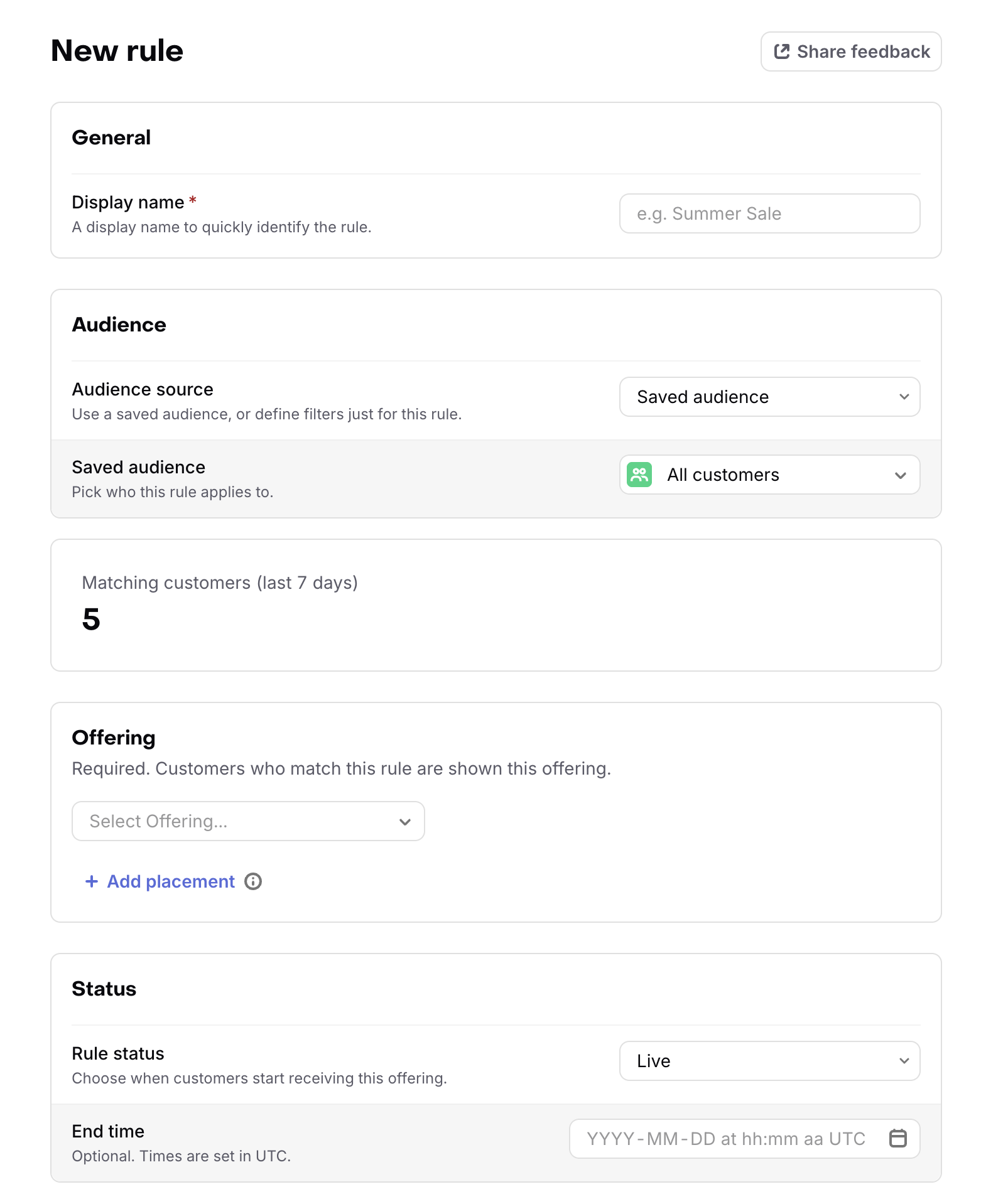
Click Save. The rule is added to the list of rules with the status you selected.
To describe a rule in plain language instead, click New rule → Create with Rico. Rico builds the audience and the Targeting Rule for you, and asks for your approval before saving anything. This option requires Rico's Read & write with permission access setting for your Project.
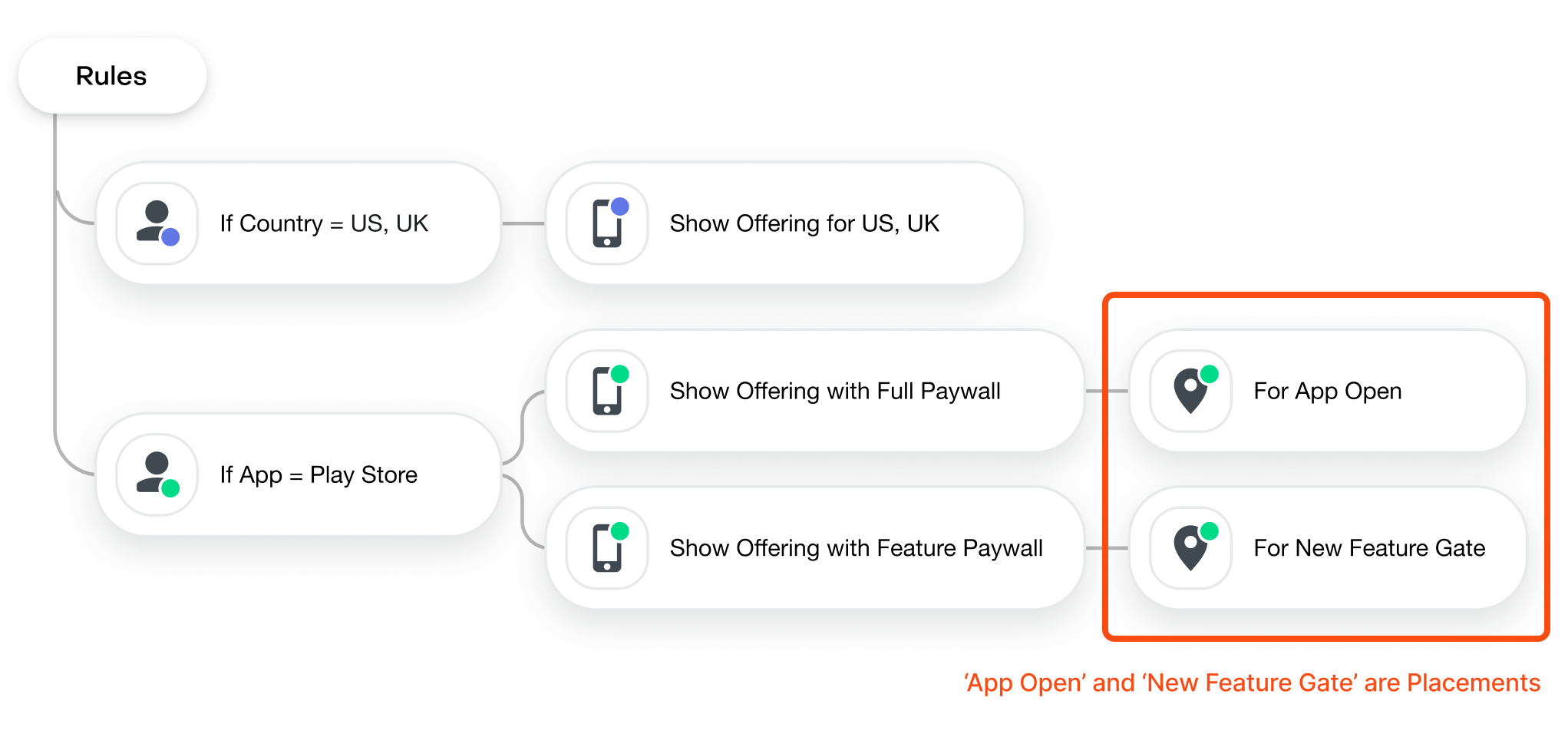
Targeting by Placement
You may also choose to setup unique Placements in your app for each paywall location so that a given customer can be served distinct Offerings at each Placement using Targeting.
Scheduling Targeting Rules
When creating a new Rule or editing an Inactive Rule, you can choose to schedule a Start Time and End Time for that Rule to become Live in the future. This is especially useful for running promotions, holiday offers, or other sales that have a time-limited component to them.
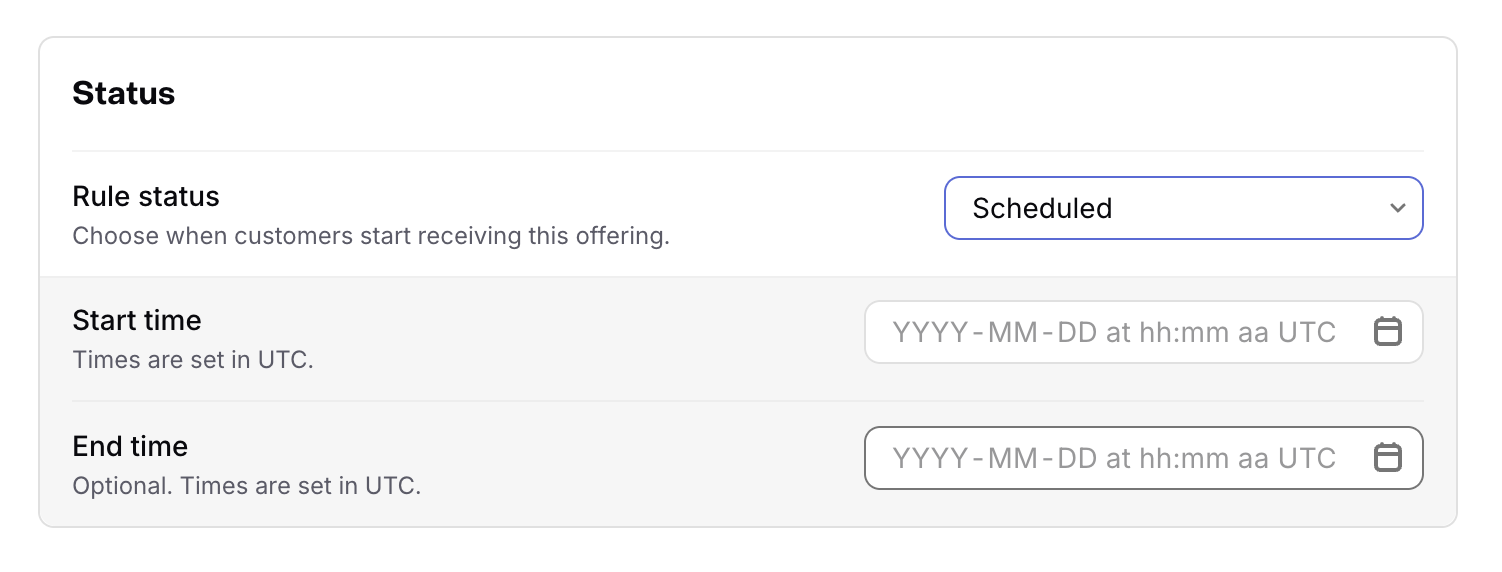
To Schedule a Rule, just:
- Select
Scheduledas the State for the Rule - And enter a
Start timeandEnd timefor the Rule to be made Live - Click
Saveto save your changes
Double check that you've entered your desired time in UTC to make sure it's scheduled correctly
Ordering Targeting Rules
How Live & Scheduled rules are added to the list
When a rule is newly set Live (either when it's created or when an Inactive rule is set Live), or newly Scheduled, it'll be ordered at the bottom of that list so that if its targeted audience has any overlap with other Live rules or Scheduled rules, the existing rules will "outrank" the new rule when determining what a customer receives.
Live & Scheduled rules can be reordered at any time.
Ordering Live & Scheduled rules
- Click "Order rules" to enter the ordering mode
- Drag the rules you wish to reorder to their correct location in the list
- Click "Save order" when you've set them in the order you'd like them to be evaluated in
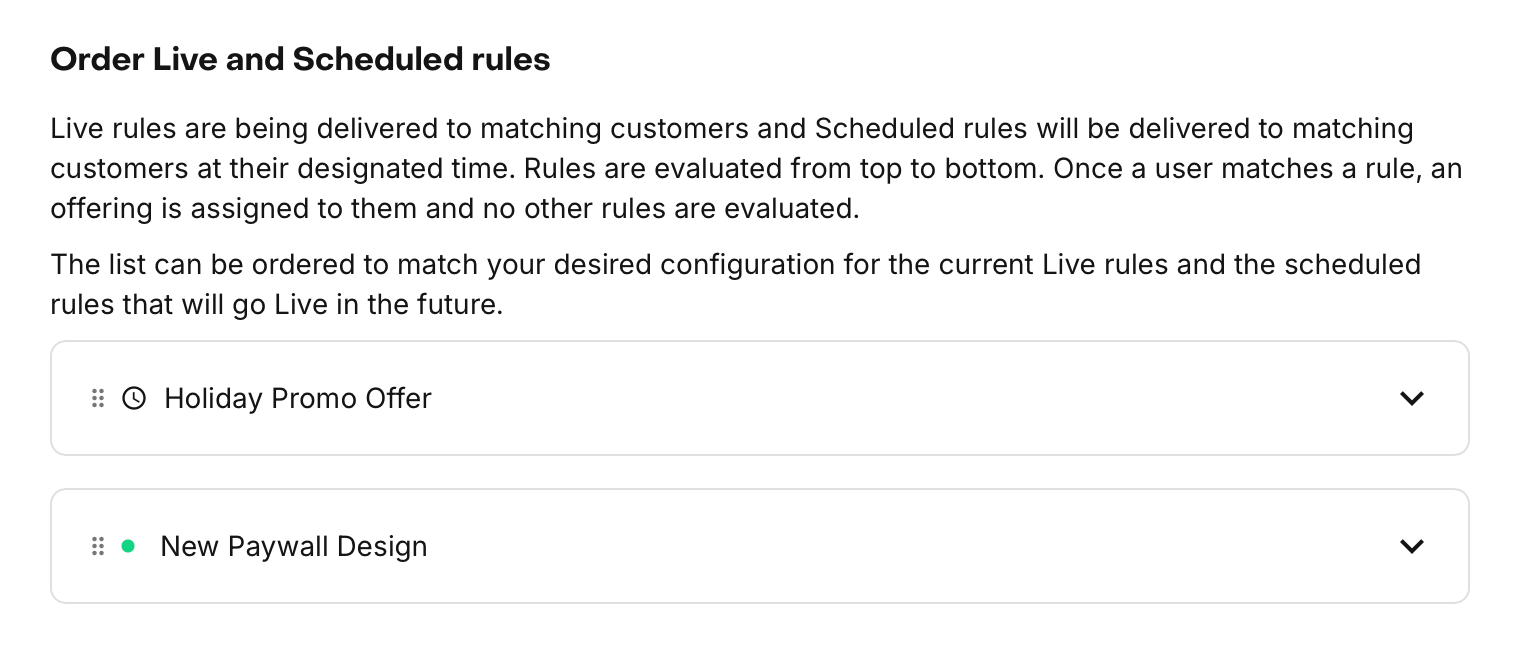
Ordering only applies to cases where 1 customer may match multiple Live rules. If your Live rules are mutually exclusive, their order will have no impact on how customers are assigned to them.
Scheduled rules have no impact on what Offerings are served until they become Live. Ordering them together with your Live rules ensures that they are in the correct order once they become Live.
Editing, deleting, and more
Rules can also be edited, deleted, or made inactive at any time if you need to modify how Offerings are being served to your customers.

To add a new rule that's similar to an existing one, duplicate that rule and change its audience or Offerings.
Choosing an audience
Each Targeting Rule targets one audience. Choose it with Audience source in the Audience section of the rule:
- All customers: every customer matches. Use it with Placements to serve different Offerings at each paywall location. A rule targeting All customers needs at least one Placement, and only one such rule can be Live.
- Saved audience: an audience saved in Customers → Audiences. Use it when several rules, or Experiments, target the same customers.
- Custom filters: filters that belong only to this rule. They don't appear in Customers → Audiences unless you click + Save audience.
Targeting Rules always use the current filters of their saved audience. When you edit a saved audience in Customers → Audiences, every Live and Scheduled rule that uses it serves the updated audience right away. Unlike Experiments, Targeting Rules don't take a snapshot of the audience.
RevenueCat evaluates a rule's audience each time your app fetches Offerings.
How filters combine
- Filters in the same group are combined with AND: a customer must match all of them. Click + Add condition to add a filter to a group.
- Click + Add group to combine groups with OR: a customer matches if they match any group.
For example, to target customers in the US or Canada who use version 2.0.0 or later of your iOS app, add these filters to one group:
- Platform is iOS
- App version
>=2.0.0 - Store country is any of US, CA
Available filters
Targeting supports the same filters as Audiences, except Active entitlements, Latest entitlements, Project ID, and Project name. These are the filters most commonly used for Targeting:
| Filter | Use it to target customers by |
|---|---|
| Store country | The storefront of their store account. |
| Last seen country | The country of their IP address. |
| Platform | The platform they use, such as iOS or Android. |
| Last seen app | The App in your Project they use. Commonly used to target by store, such as the App Store or Google Play. |
| App version | Your app's user-facing version string. See App version. |
| SDK flavor and SDK version | The RevenueCat SDK they use. Commonly used to serve a paywall only to SDK versions that support it. See Fallback paywalls by SDK version. |
| Custom attribute | Any custom attribute you set for your customers. |
| Subscription status | Whether they're trialing, active, expired, and so on. |
Other filters cover purchase history, products purchased, total spend, attribution data, and ad monetization.
App version
The App version filter compares your app's user-facing version string. With the >, >=, <, and <= operators, RevenueCat compares versions using semantic versioning.
The value used differs by platform:
| Platform | Value used |
|---|---|
| iOS, macOS, tvOS, watchOS, visionOS | CFBundleShortVersionString, the Version field in Xcode (MARKETING_VERSION) |
| Android, Amazon | versionName, from defaultConfig in your build.gradle |
| Flutter, React Native, Unity, Capacitor, Cordova, KMP | The underlying native value above, from the iOS or Android project |
| Web Billing | Not sent |
The build number is never used for Targeting: CFBundleVersion on Apple platforms, and versionCode on Android. A filter set to your build number won't match your customers.
If your app doesn't set a version string at all, App version comparisons won't match that customer.
The App version filter applies to every App in your Project. If your apps use different version numbers, add Last seen app or Platform to the same group.
Rules created before audiences
Targeting Rules used to be built from a fixed set of conditions. RevenueCat converted those rules into equivalent custom filters automatically, so you don't need to rebuild them. Their names, Offerings, Placements, schedules, and status didn't change.
FAQs
How do Targeting and Experiments interact?
TL;DR Experiment enrollment is checked before Targeting Rules are assessed
When any Experiment is running, customer enrollment will occur before Offerings are fetched. When Offerings are fetched, we'll first check to see if a customer is enrolled in a running Experiment. If they are, their variant's Offering will be returned. If they are not, then any existing Targeting Rules will be assessed.
This means a customer who matches both an experiment's audience and a Targeting Rule receives the experiment's Offering while enrolled. When you roll out an experiment's winner as a Targeting Rule, the new rule uses the same filters as the experiment's audience and is added at the top of your Live rules. Learn more about how experiments enroll customers.
How can I test Targeting in my app?
The easiest way to test Targeting is to create a Targeting Rule whose audience filters on an App version that has not yet been released (e.g. only available in TestFlight), and serve a unique Offering to that Targeting Rule. Then, check to confirm whether your app in production displays a different Offering than your app version in TestFlight does.
Why are Placements not part of the audience?
A rule's audience determines whether a customer matches the rule. Placements determine which Offering that customer gets at each paywall location in your app. The audience defines who the customer is, and Placements define what the customer gets.
Can I add other custom fields to target my customers by?
Yes. Since Targeting is based on Audiences, you can target customers by any custom attribute you set from your app, and by the other fields Audiences support, such as subscription status, purchase history, products purchased, total spend, and attribution data. See Available filters. If you have a use case that's not yet covered, let us know about it.