Cordova
Instructions for installing Purchases SDK for Cordova


What is RevenueCat?
RevenueCat provides a backend and a wrapper around StoreKit and Google Play Billing to make implementing in-app purchases and subscriptions easy. With our SDK, you can build and manage your app business on any platform without having to maintain IAP infrastructure. You can read more about how RevenueCat fits into your app or you can sign up free to start building.
The Cordova SDK is now deprecated. We suggest using our Capacitor SDK instead.
The Cordova SDK will receive maintenance updates, but new RevenueCat features will not be made available.
Installation
- Installation
cordova plugin add cordova-plugin-purchases --save
Additional Android Setup
Compile against API 35 or higher
Version 9 of the plugin requires cordova-android 13 or later, and your app must compile against Android API 35 or later. cordova-android 14 does this by default. On cordova-android 13, set it in config.xml:
<platform name="android">
    <preference name="android-compileSdkVersion" value="35" />
</platform>
If your app compiles its own Kotlin code with GradlePluginKotlinEnabled, the default Kotlin version (1.9.24 in cordova-android 13 and 14) is too old. Set GradlePluginKotlinVersion to 2.1.0 or newer:
<preference name="GradlePluginKotlinVersion" value="2.1.0" />
Set the correct launchMode
Depending on your user's payment method, they may be asked by Google Play to verify their purchase in their (banking) app. This means they will have to background your app and go to another app to verify the purchase. If your Activity's launchMode is set to anything other than standard or singleTop, backgrounding your app can cause the purchase to get cancelled. To avoid this, set the launchMode of your Activity to standard or singleTop in your Android app's AndroidManifest.xml file:
- AndroidManifest.xml
<activity
    android:name="com.your.Activity"
    android:launchMode="standard" />  <!-- or singleTop -->
You can find Android's documentation on the various launchMode options here.
Additional iOS Setup
Version 9 of cordova-plugin-purchases requires cordova-ios 8 or later and uses Swift Package Manager (SPM) for iOS. When upgrading from an earlier plugin version, follow the v9 migration guide.
Don't forget to enable the In-App Purchase capability for your iOS project under Project Target -> Capabilities -> In-App Purchase
Add Strip Frameworks Phase if using cordova-plugin-purchases 1.1.0 or lower
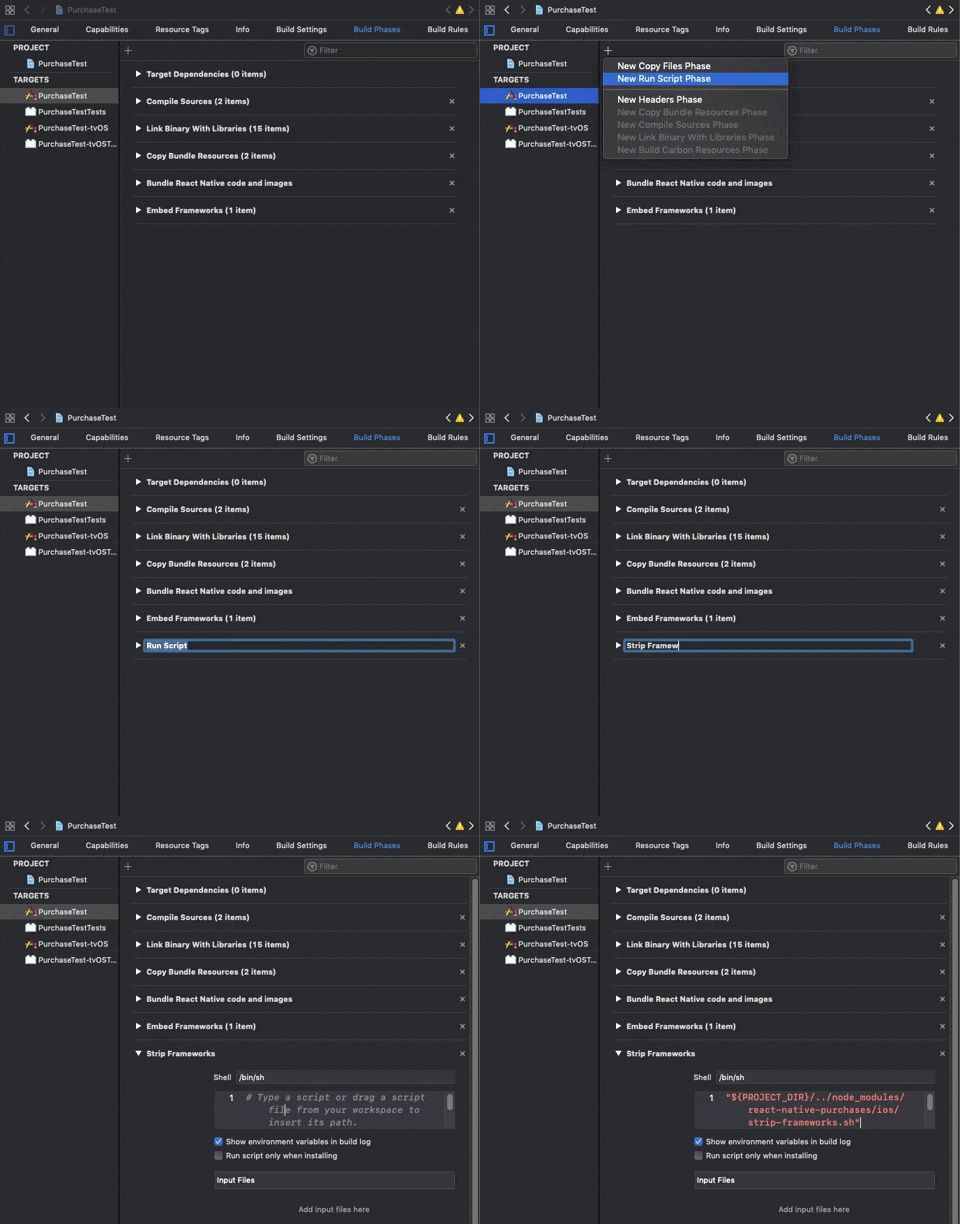
The App Store, in its infinite wisdom, still rejects fat frameworks, so we need to strip our framework before it is deployed. To do this, add the following script phase to your build.
- In Xcode, in project manager, select your app target.
- Open the
Build Phasestab - Add a new
Run Script, name itStrip Frameworks - Add the following command
"${PROJECT_DIR}/../../node_modules/cordova-plugin-purchases/src/ios/strip-frameworks.sh"(quotes included)
Set SWIFT_LANGUAGE_VERSION if using cordova-plugin-purchases 8.x or lower
cordova-ios 8 supports Swift natively, so version 9 needs no Swift setup. On earlier versions, make sure that the SWIFT_LANGUAGE_VERSION is set if it's not already. cordova-plugin-purchases needs Swift >= 5.0.
You can either set it in the project yourself, or use an external plugin like https://www.npmjs.com/package/cordova-plugin-add-swift-support. In order to set it yourself:
- In Xcode, in project manager, select your app target.
- Open the
Build Settingstab - Look for the
Swift Language Versionsetting. - Set it to 5.0.
Import Purchases
TypeScript
The types are shipped inside the npm package. You can import them like this:
- Cordova Typescript types
import Purchases, {
    PurchasesOfferings, // Types for TypeScript
} from 'cordova-plugin-purchases/www/plugin';
Angular
Wait for the Platform to be ready, then configure the plugin in your src/app/app.component.ts:
- Cordova
import { Platform } from "@ionic/angular";
// TS typings for the plugin
import Purchases, { LOG_LEVEL } from 'cordova-plugin-purchases/www/plugin';

constructor(platform: Platform) {
    platform.ready().then(() => {
        Purchases.setLogLevel(LOG_LEVEL.DEBUG); // Enable to get debug logs
        Purchases.configureWith({
            apiKey: "my_api_key",
            appUserID: "my_app_user_id"
        });
    });
}
React
Import the plugin object then use its static methods:
- Cordova
import Purchases, { LOG_LEVEL } from 'cordova-plugin-purchases/www/plugin';

const Tab1: React.FC = () => {
  Purchases.setLogLevel(LOG_LEVEL.DEBUG); // Enable to get debug logs
  Purchases.purchases.configureWith({
    apiKey: "my_api_key",
    appUserID: "my_app_user_id"
  });
  return (
    <IonPage>
      <IonHeader>
        <IonToolbar>
          <IonTitle>My App</IonTitle>
        </IonToolbar>
      </IonHeader>
      <IonContent>
        <IonButton onClick={purchasePackage}>Subscribe now</IonButton>
      </IonContent>
    </IonPage>
  );
};
Next Steps
- Now that you've installed the Purchases SDK in your Cordova app, get started by initializing an instance of Purchases →