Amazon Appstore


This section assumes you've followed our Quickstart section of our Getting Started guide to install and configure our SDK.
There are two options for sandbox testing: an Android device with the Amazon Appstore installed (which can be downloaded here), or on an Amazon device running Fire OS, like a Fire TV.
Testing an app built for Vega OS? See Vega OS.
There are three different testing environments in Amazon (official docs):
- App Tester. There's an app called App Tester that can be installed in your testing device and configured with a JSON to load testing products.
- Live App Testing. This is similar to a beta or TestFlight release. You create an APK, upload it to the Amazon Appstore, add testers and start the test.
- Production.
While Offerings will load in the App Tester environment, RevenueCat will only validate purchases in the Live App Testing environment.
Amazon provides the option to accelerate timelines for sandbox testing. This is currently not supported by RevenueCat and it can cause wrong timestamps to appear in events.
We recommend starting by configuring the App Tester with the same products configured in the RevenueCat dashboard, which will let you get offerings and test how your paywall screen looks.
When you're ready to test purchasing the products, start a Live App test with a debug APK and download the app in the device via the Amazon Appstore. The installed app should be able to process the purchases and you can test the whole integration. You can also attach the Android Studio debugger to that debug APK downloaded from the Amazon Appstore if needed.
App Tester
When using Amazon's App Tester app, you'll need to enable sandbox mode. You can enable sandbox mode by following Amazon's guide here.
Live App Testing (LAT)
Submit your app to the App Testing Service.
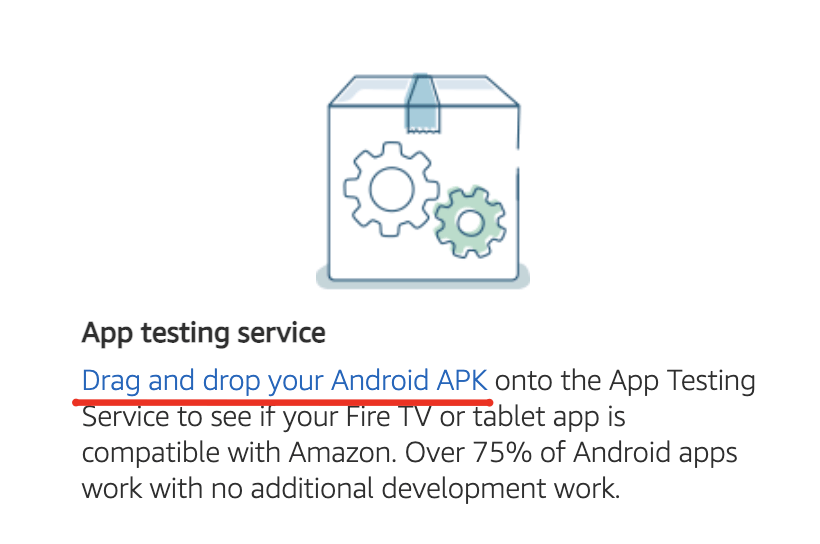
Submit the APK for your app to LAT.

Have your group of testers test your app via LAT: Go back to your developer dashboard and select your app from the 'App List'. Here you will select 'Live App Testing'.
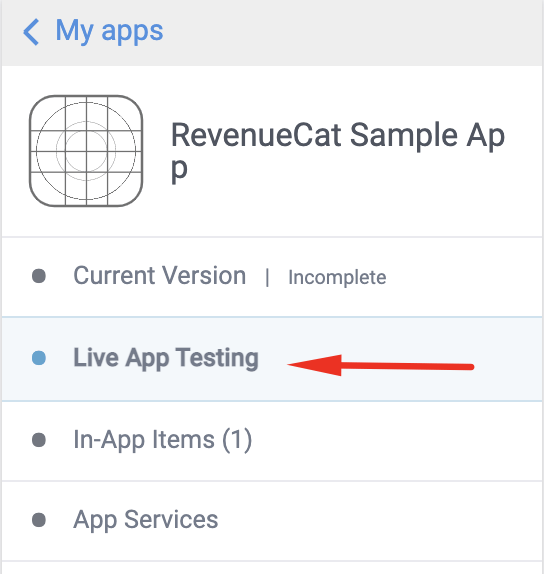
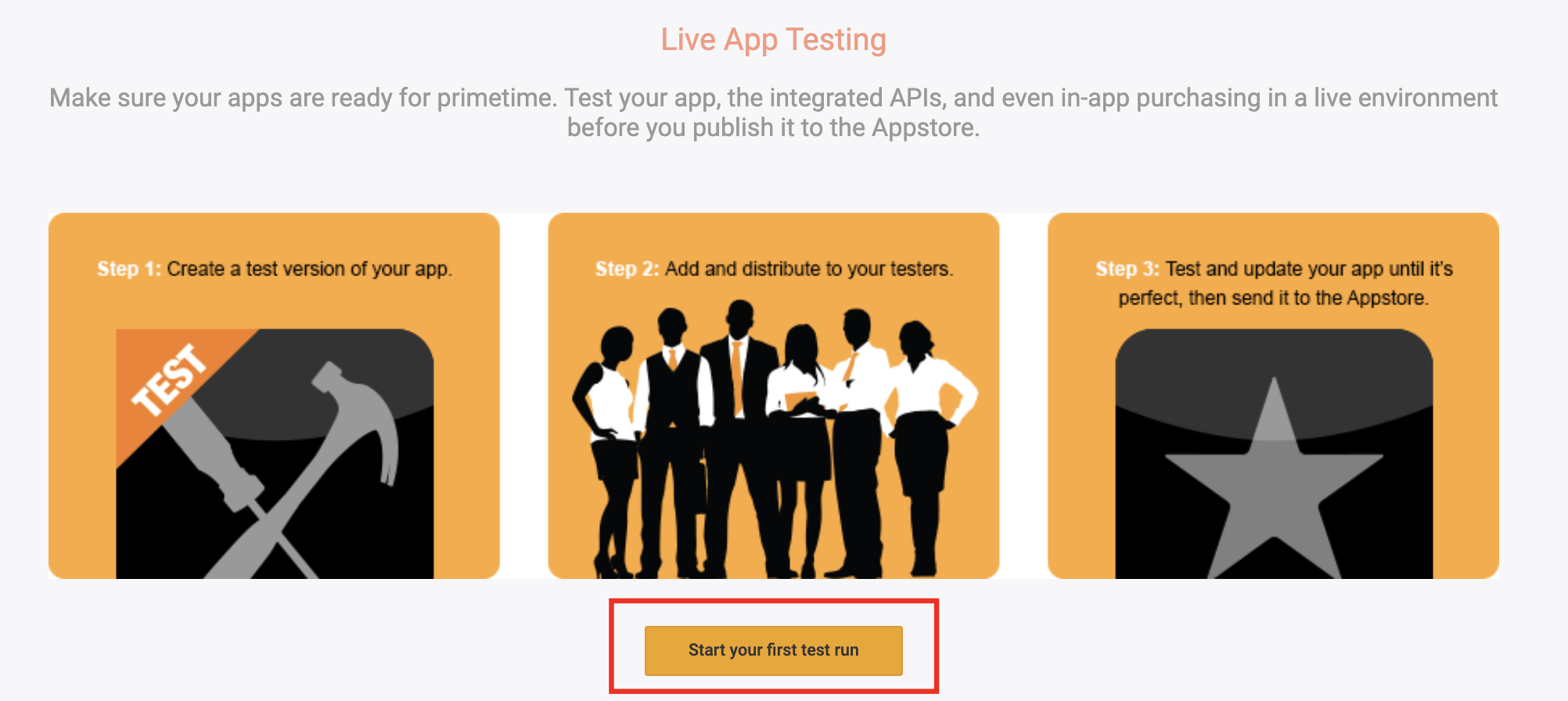

Click on 'Live App Testing' in the sidebar again, then click 'Manage testers' to add your testers.

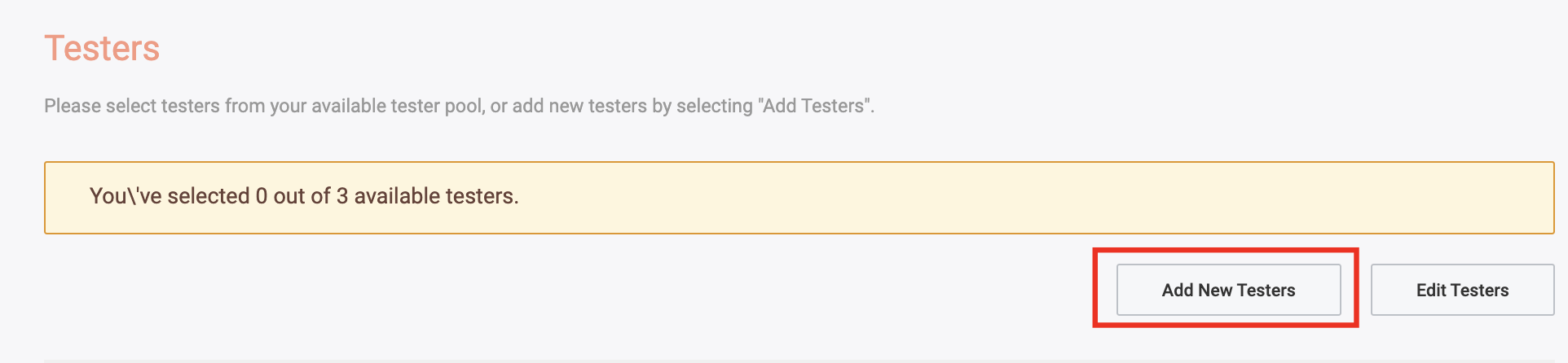

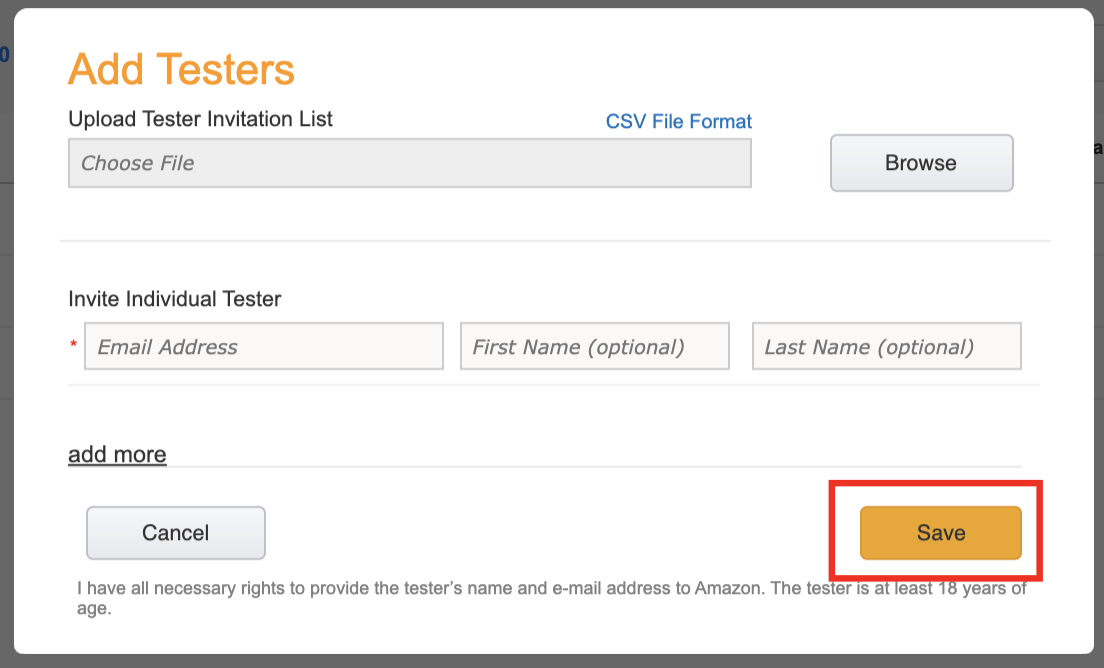
Fill out the relevant details and click 'Save'.
Return to 'Live App Testing' and select 'Edit Testers'.
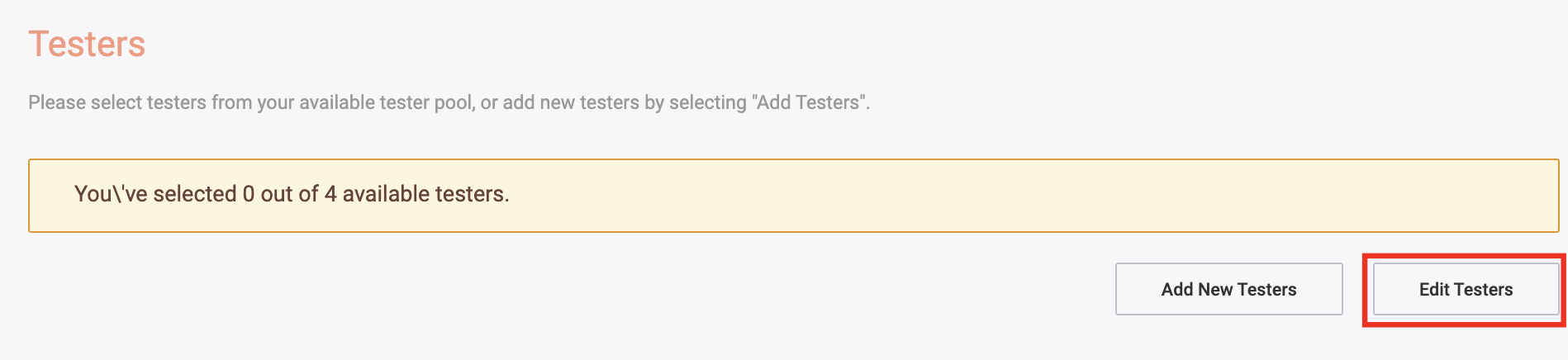
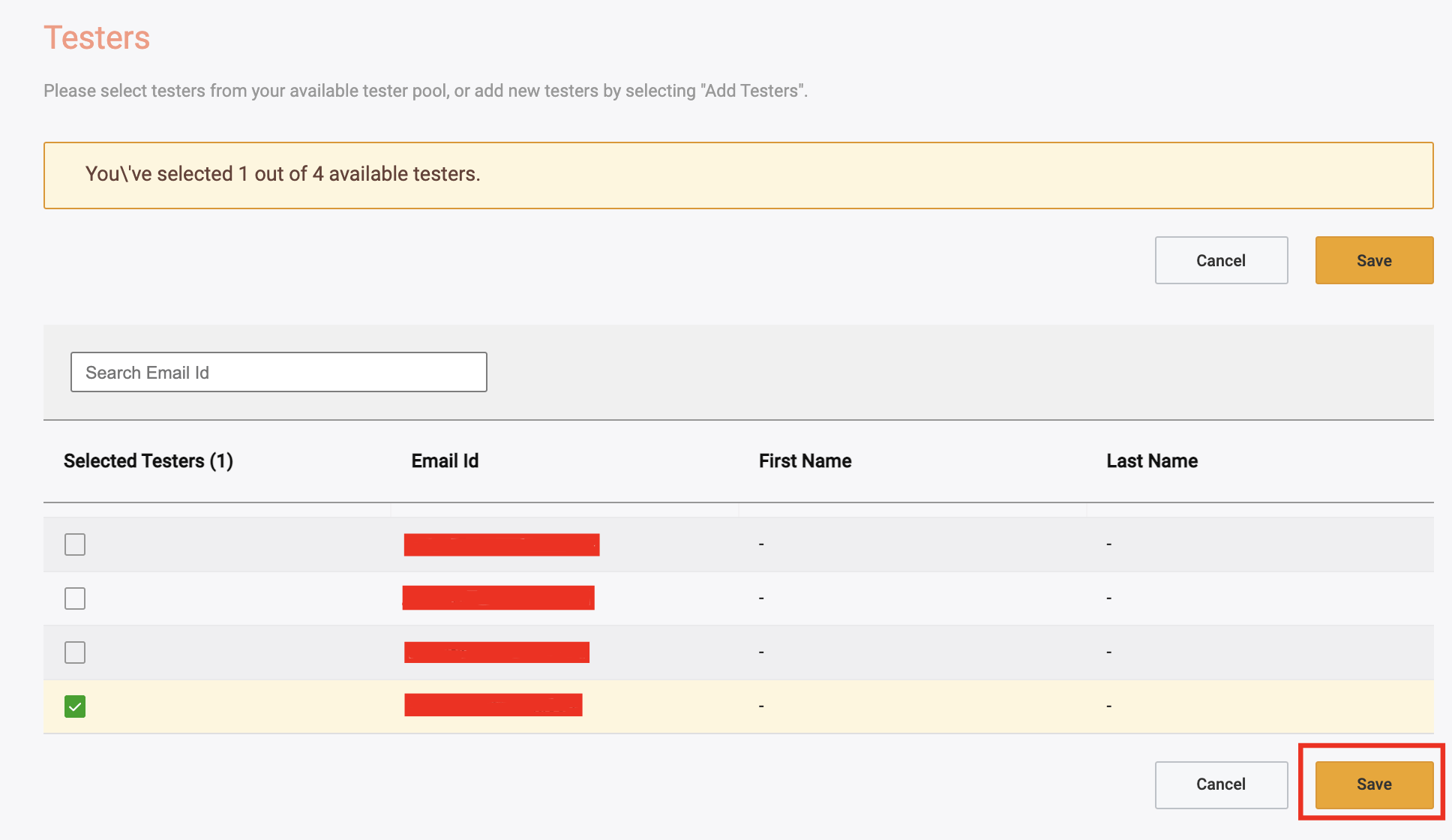
Select the testers you want to test this app and hit 'Save'.
After adding testers, select the three dots, and then click 'Submit'.
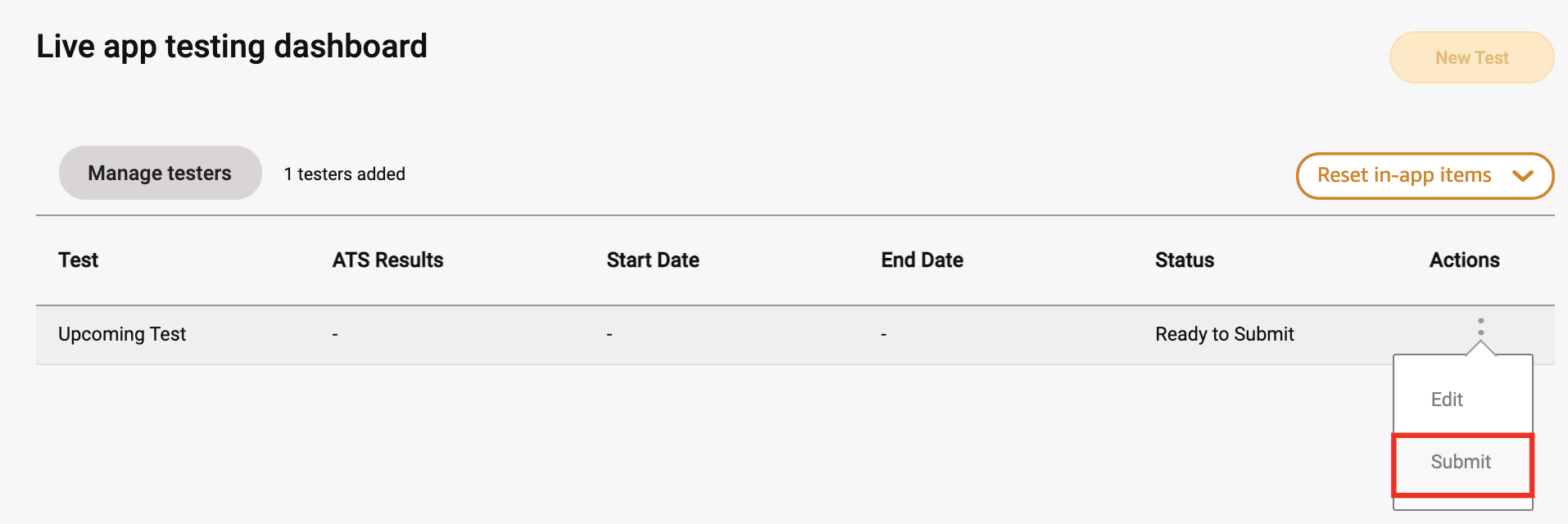
Once this is completed, testers will receive an email containing a link to your app's test page with instructions on how to download and install your app.
Vega OS
Apps built with the Vega OS SDK support two testing environments:
- DevTest: Install a build signed with your app's certificate directly on your device. DevTest is the fastest way to iterate, but you need to inject your app's certificate into each build before you install it.
- Live App Testing (LAT): Upload your app to the Amazon Appstore and install it from there, as described in Live App Testing above.
Enroll your Amazon account in both environments. Products only load in environments your Amazon account is enrolled in.
Before you start testing, consider setting the SDK's log level to verbose to see every log from the SDK:
- Vega
Purchases.setLogLevel(LogLevel.Verbose);