Testing Paywalls



This page refers to testing paywalls to ensure they're working as expected before releasing them to production. If you're looking to learn about A/B testing paywalls, see Experiments.
There are several ways to test your paywalls before releasing them to production. Here are a few options to consider:
1. Preview in the RevenueCat app
You can preview paywalls directly on device using the RevenueCat iOS app version 1.2 and above. This provides a quick way to see how your paywall will look, without building your app.
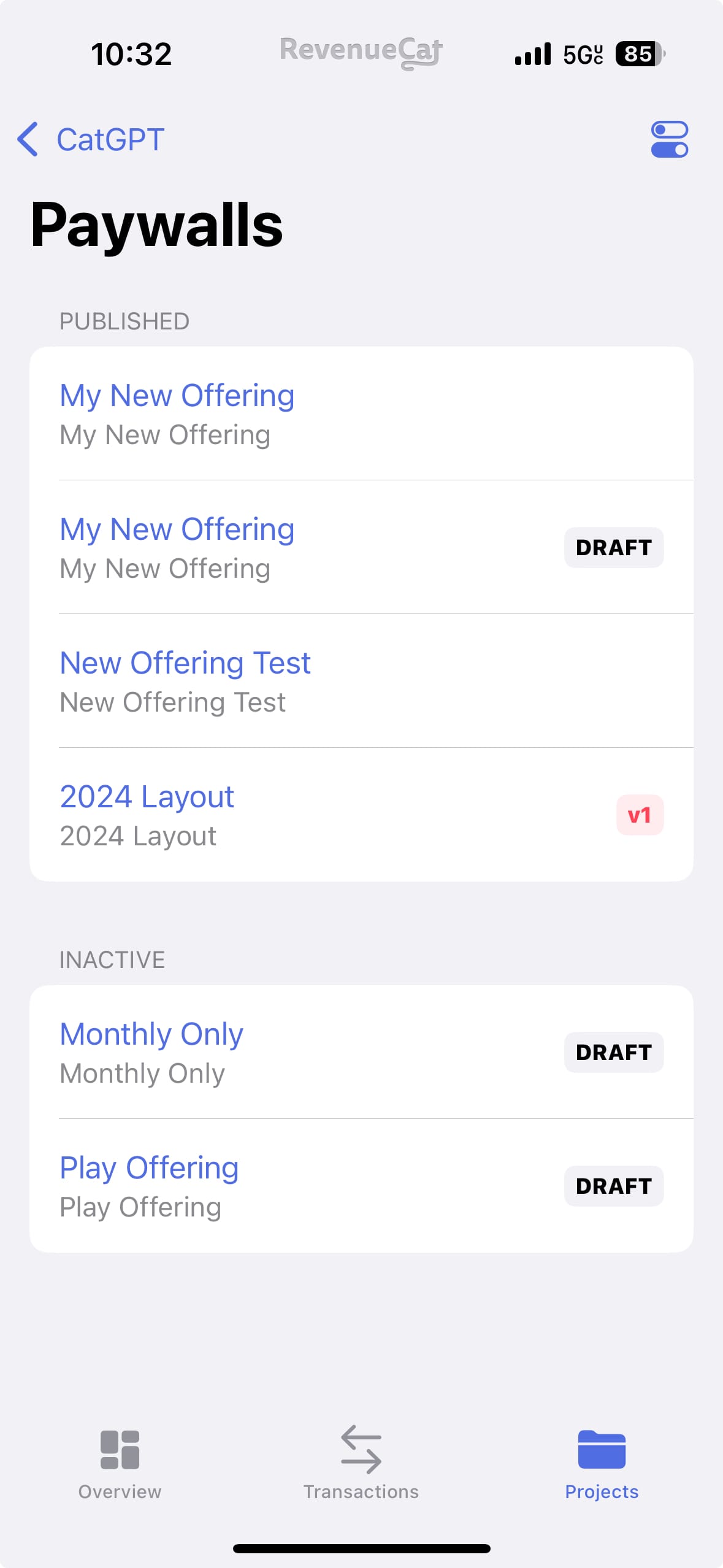
Just tap on "Projects" in the bottom menu, navigate to your project, then tap on "Paywalls" to see a list of all your paywalls.
The RevenueCat app also supports previewing draft paywalls, which you'll see as unique options in the list to select and preview.
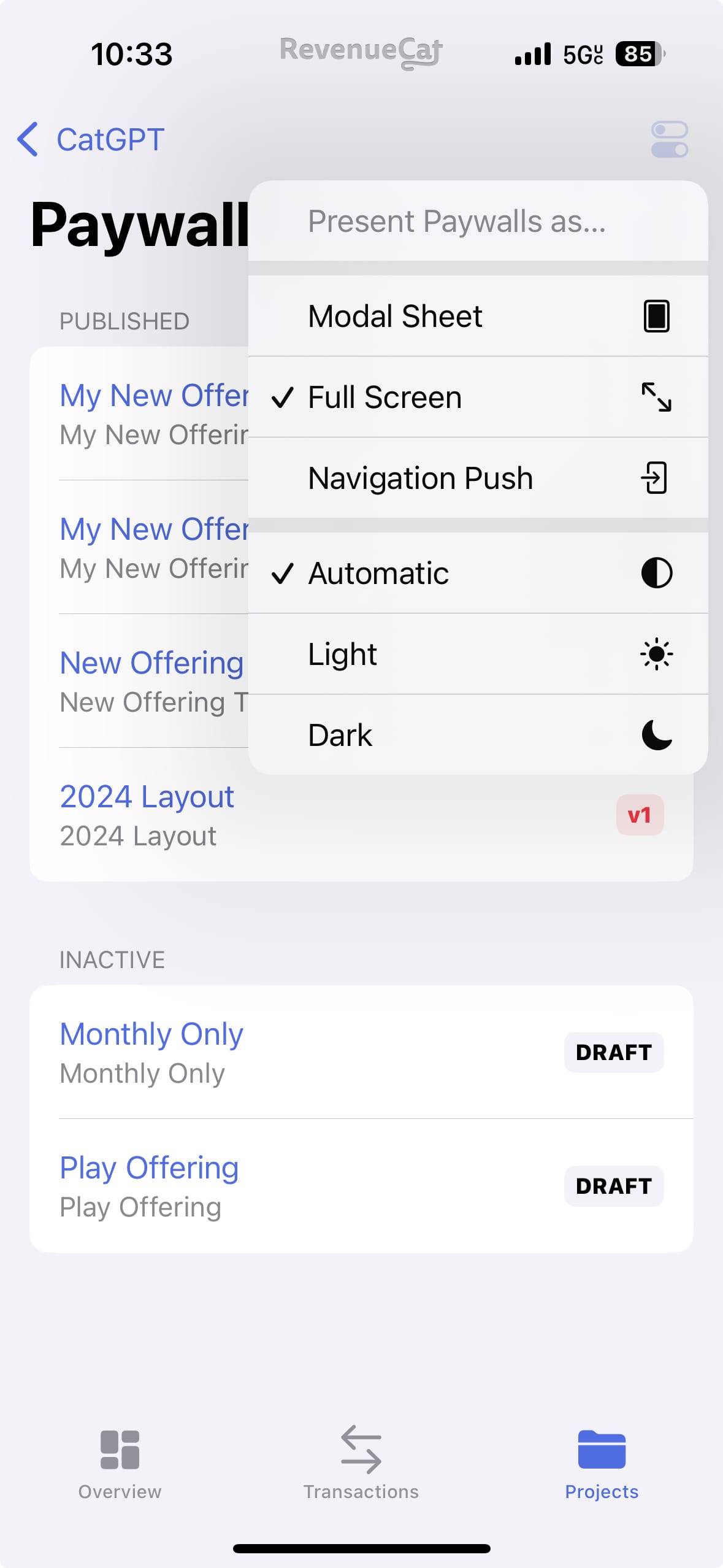
You can also modify how the paywall view is built (e.g. Full Screen vs. a Modal Sheet view), and whether dark or light mode is used.
If your paywall is a multi-step paywall, the RevenueCat app renders the full flow so you can step through each screen and verify your in-paywall navigation before publishing. Make sure your test device is running an app version that supports multi-step paywalls.
Please note that the RevenueCat app uses preview values for any variables your paywall uses, so the prices displayed will not reflect the actual prices of your products. They're only intended to reflect how your paywall will look when real values are inserted in your app.
2. Preview in your app
With the latest version of the RevenueCat SDK, you can preview published paywalls in your own app.
This feature is currently available on the native iOS and Android SDKs starting from version 5.80.0 on iOS and 10.11.0 on Android.
1. Copy the custom URL scheme from the RevenueCat Dashboard
You can find this in the RevenueCat dashboard inside your app's settings, under "Custom URL Scheme". It is unique to your app.
2. Allow your app to respond to links with your custom scheme
Register the custom URL scheme to your mobile app, just like you would for Redemption Links.
3. Handle the link in your app
Our SDKs provide APIs to preview the paywall directly in your app.
Please note that it is up to you to decide when your app will accept a link to preview a paywall. If you only want this to work for internal testers, consider adding a condition (such as #if DEBUG) to your code before invoking the SDK.
iOS
In SwiftUI, you can add an onOpenURL handler to your scene's content view to open handle incoming URLs. If you're building a UIKit-based app, handle the URL in your UISceneDelegate instance.
- SwiftUI
- UIKit
WindowGroup {
    AppContentView()
        .onOpenURL { url in
            if Purchases.shared.presentPaywall(from: url) {
                // A paywall will be presented; no further action is necessary
                return
            }
            // handle other URL logic for your app
        }
}
func scene(_ scene: UIScene,
           willConnectTo session: UISceneSession,
           options connectionOptions: UIScene.ConnectionOptions) {

    guard let url = connectionOptions.urlContexts.first?.url {
        return
    }

    if Purchases.shared.presentPaywall(from: url, scene: scene as? UIWindowScene) {
        // A paywall will be presented from this scene; no further action is necessary
        return
    }

    // handle other URL logic for your app
}
Android
In Android, pass the intent to the SDK from your Activity. If the SDK recognizes the intent, it will automatically present the paywall:
- Android
class MainActivity : Activity() {

    override fun onCreate(savedInstanceState: Bundle?) {
        super.onCreate(savedInstanceState)
        handlePaywallPreview(intent)
    }

    // This allows your app to respond to the intent
	// if setting certain launch modes in the AndroidManifest.xml.
    override fun onNewIntent(intent: Intent) {
        super.onNewIntent(intent)
        handlePaywallPreview(intent)
    }

    private fun handlePaywallPreview(intent: Intent) {
        if Purchases.sharedInstance.previewPaywall(intent, this) {
            // A paywall will be presented; no further action is necessary
            return
        }
    }
}
Hybrid SDK Support
Support for previewing paywalls in the hybrid SDKs is coming soon.
3. Override a Customer's Default Offering
The simplest way to test a paywall is by overriding an individual customer's offering through their Customer Profile in the RevenueCat dashboard:
- Navigate to the Customer Profile for your test device
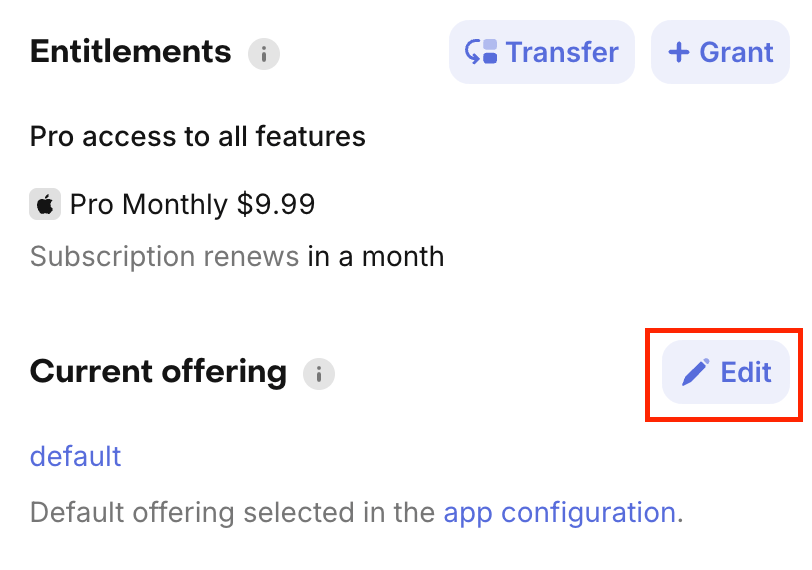
- In the current offering section, click "Edit"
- Select the offering containing your test paywall
- Launch your app and navigate to the paywall to see the paywall of your overridden offering
4. Create a Targeting Rule for an internal app version
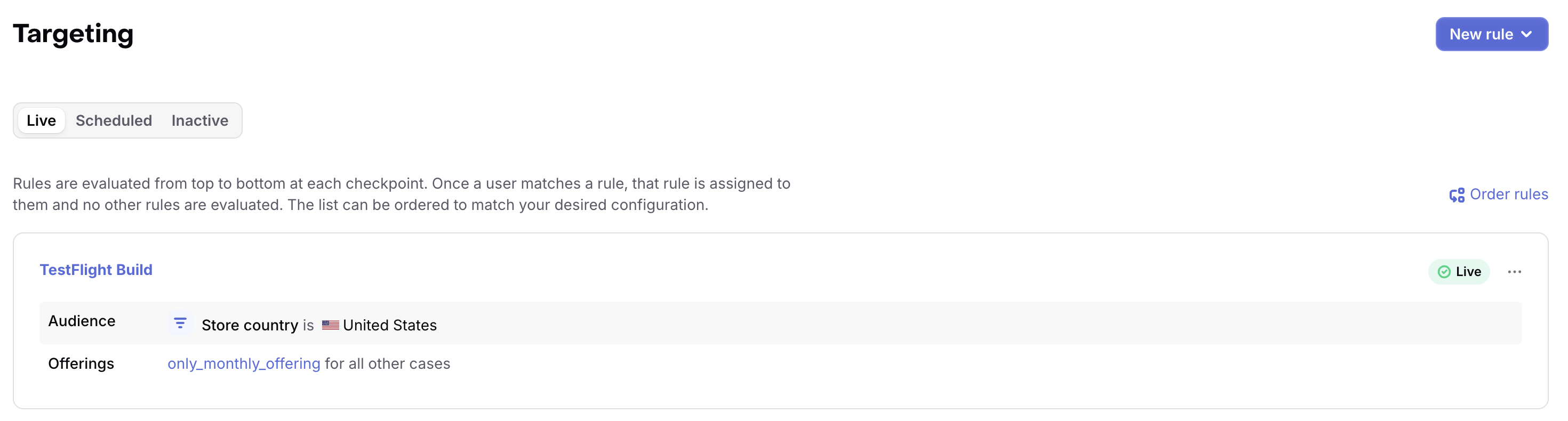
You can create a Targeting Rule to show specific paywalls to internal builds of your app:
- Create a new Targeting Rule
- In the Audience section, set Audience source to Custom filters and add the filters Last seen app is your app and App version is X.Y.Z, using your internal build's version string
- Set the Offering to the one containing your test paywall
- Install the internal build on your test device
This approach is useful for testing paywalls across your team before releasing to production.
5. Testing through Xcode and Android Studio
Xcode
When testing through Xcode, you can:
- Use the iOS Simulator to test different device sizes and orientations
- Test different locales to verify translations
- Test different subscription states using StoreKit Configuration files
Android Studio
When testing through Android Studio, you can:
- Use the Android Emulator to test different device sizes and screen densities
- Test different locales and languages to verify translations
- Test different subscription states using Google Play's license testing
- Preview layouts directly in Android Studio's Layout Editor
Best Practices
- Test your paywall across different device sizes to ensure proper layout
- Verify all purchase flows work as expected (in-app purchases, web purchases, etc.)
- Test localization if your app supports multiple languages
- Verify that variables are properly populated with product information
- Test both light and dark mode if your paywall supports them
- For multi-step paywalls, go through every step and confirm each navigation button leads to the correct step, and that the final step can complete a purchase