Galaxy Store Real-time Notifications
Sending Galaxy Store real-time notifications to RevenueCat



RevenueCat doesn't require server notifications from the Galaxy Store for most subscription updates. Configuring them can still speed up webhook and integration delivery times and reduce lag time for Charts. If you sell one-time purchases, set up Galaxy Store Real-time Notifications so refunds update in RevenueCat automatically. Without them, a refund might only appear after the Customer opens the app again and purchases sync.
Galaxy Store server notifications only work if the receipt exists in RevenueCat when the event is dispatched from Galaxy Store. If the receipt doesn't exist, the notification will be ignored.
Setup Instructions
-
Navigate to your Galaxy app settings in the RevenueCat dashboard by selecting your app from Apps.
-
Expand the Galaxy Server to Server notification settings section and copy the endpoint provided under Samsung IAP Instant Server Notification Service URL.

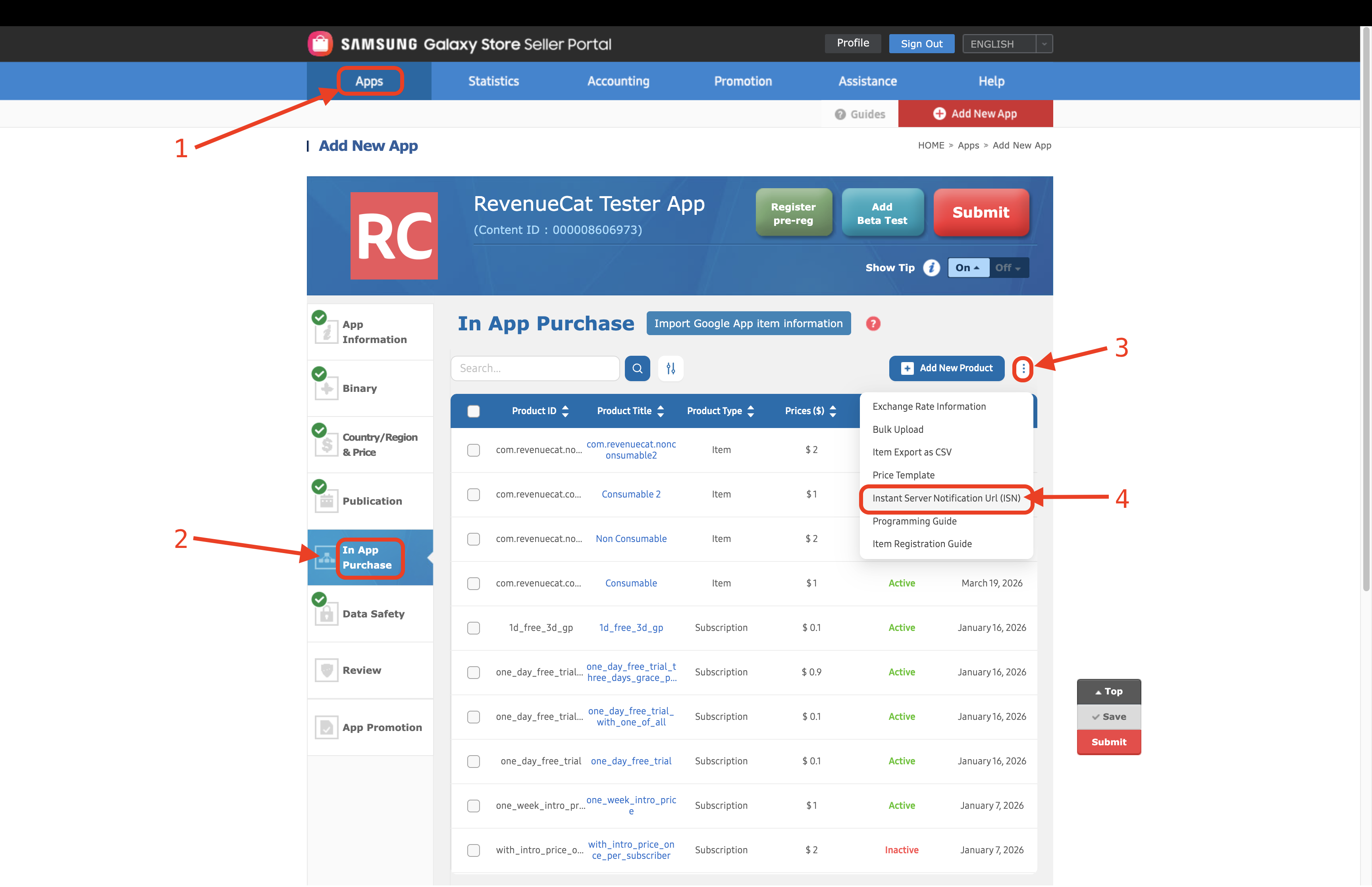
- Go to the Galaxy Store Seller Portal. Open the App tab, select In App Purchase, select the options button with the three dots, then select Instant Server Notification Url (ISN).
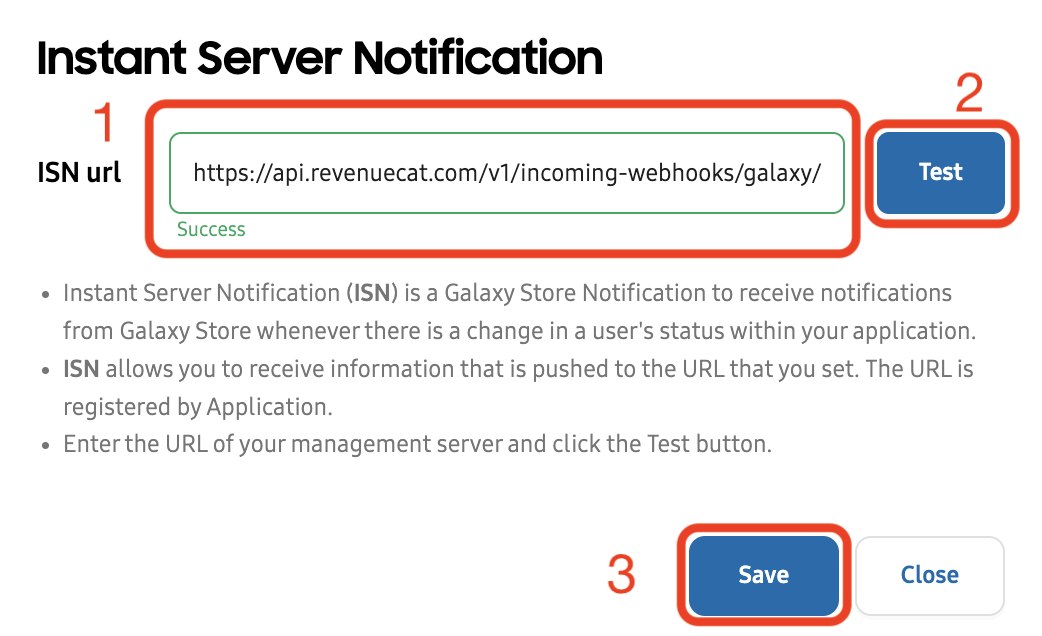
- Paste the URL of the endpoint you copied from the RevenueCat dashboard. Optionally, click the Test button to verify the connection, then click Save.
- If you performed the test, you should see a Last received at timestamp for the endpoint in the RevenueCat dashboard.
