Galaxy Store Product Setup
Setting up your in-app purchases in Galaxy Store



To set up products for the Galaxy Store, start by logging into your Galaxy Store Seller Portal. The Galaxy Store Seller Portal is your central hub for managing app releases, testing, in-app purchases, and more.
This guide assumes basic knowledge of the Galaxy Store, as well as having an app set up and ready for adding in-app purchases. If you haven't set up your Seller Portal account or registered your app yet, start with Publish your app on the Galaxy Store. For more information, visit Galaxy's documentation and guides for the Galaxy Store.
Create an In-App Product or Subscription
To create an in-app product or subscription, sign in to the Galaxy Store Seller Portal.
Navigate to your app under Apps, then select In App Purchase, then Add New Product.
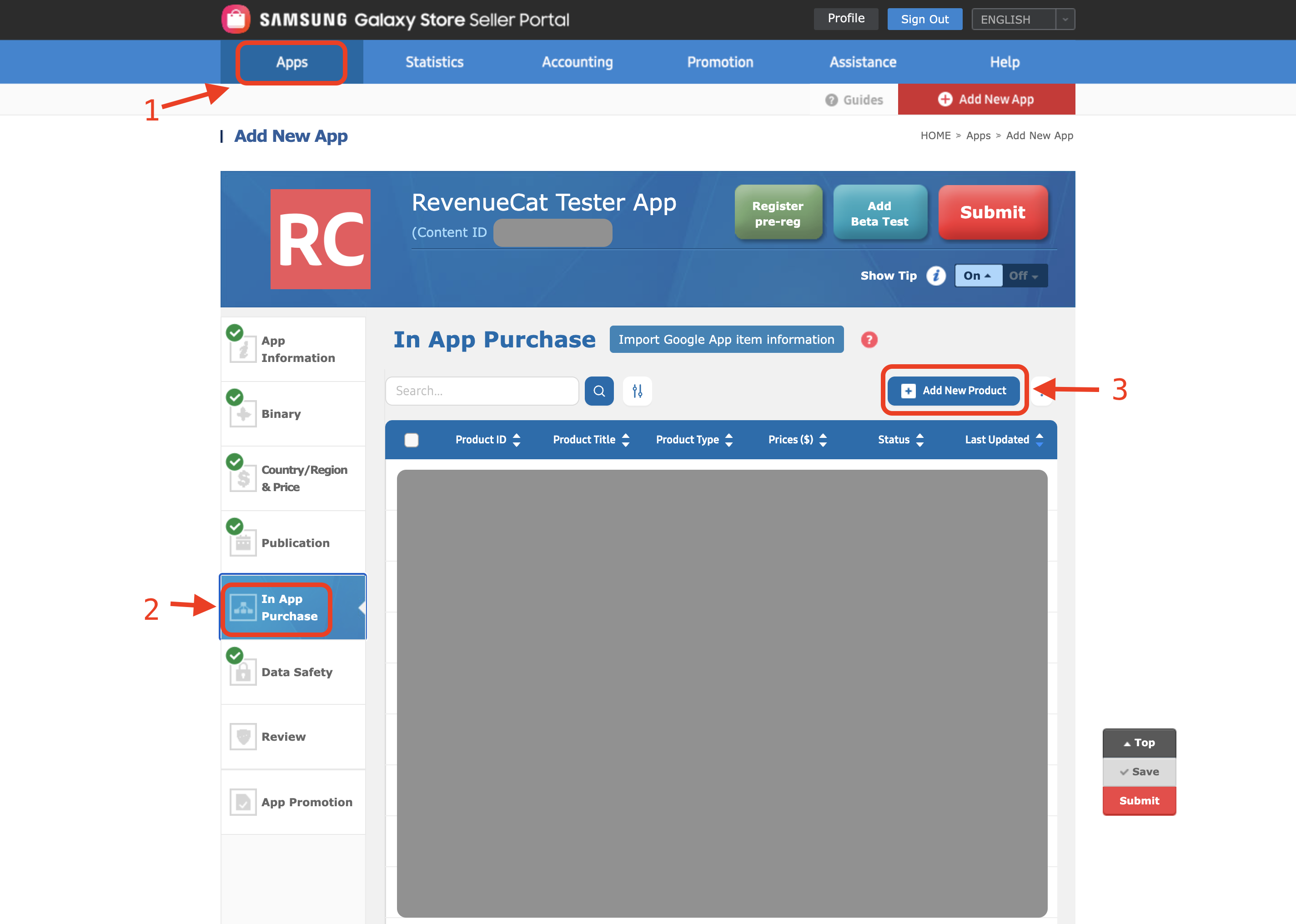
In the dialog that appears, select if you'd like your product to be a Subscription or Item (one-time purchase).
Product Details
Enter the relevant product details:
| Field | Description |
|---|---|
| Product ID | A unique identifier for your product. You'll use this to reference the product in RevenueCat. |
| Product Title | The name of your product, displayed to users. |
| Description | A description of what the product provides. |
| Price | Your desired price point for the product. |
| Subscription Details | For subscriptions, configure the billing period, renewal settings, etc. |
Activate Your Product
Once the product is created, you must activate it before users can purchase it:
- Check the newly-created product checkbox
- Click Activate
- Click OK in the confirmation pop-up that appears
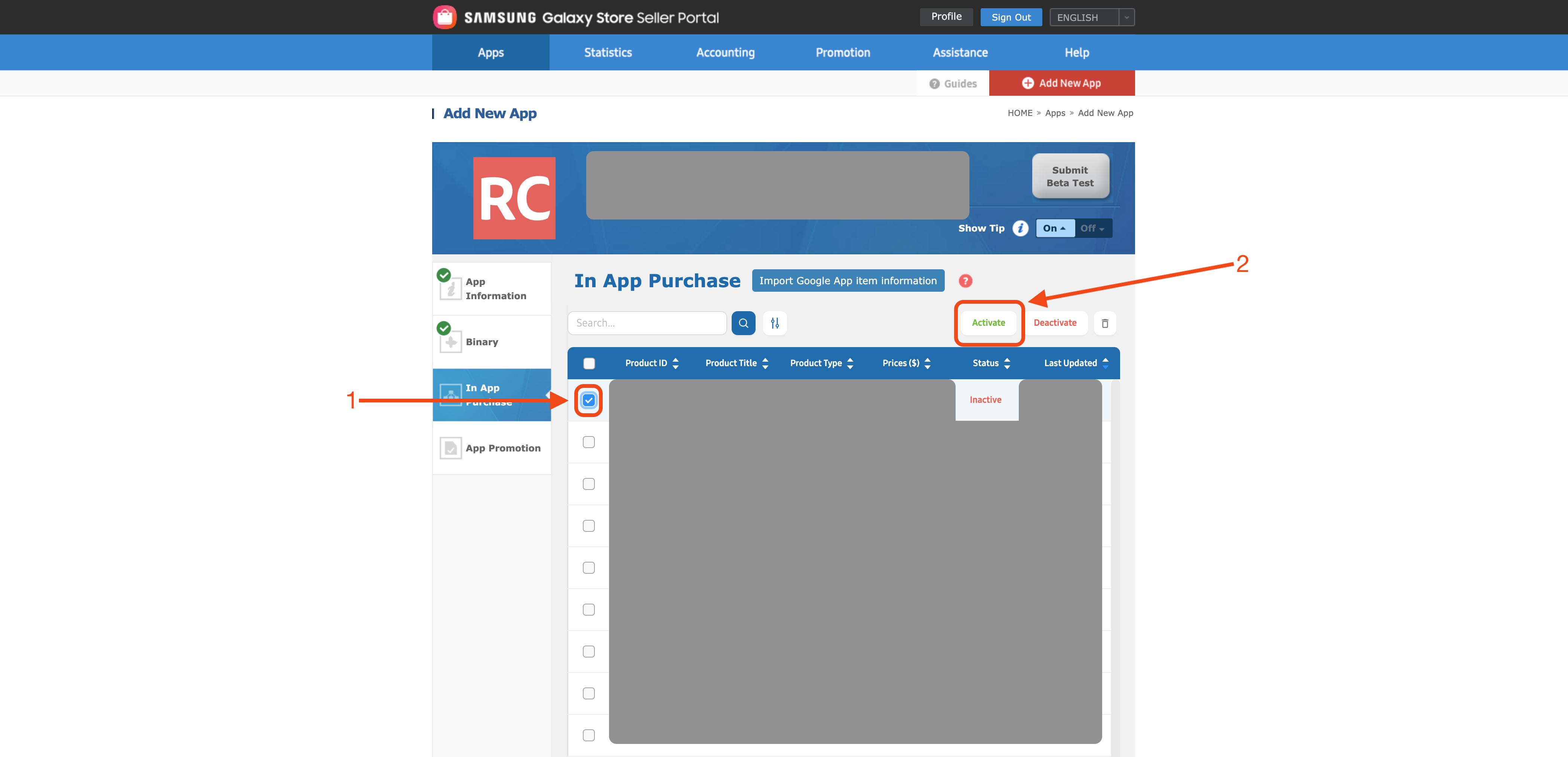
You must activate your newly created product in the Galaxy Store Seller Portal before you will be able to fetch the product and purchase it with the RevenueCat SDK.
Add the Product to RevenueCat
After creating and activating your product in Galaxy Store, you need to add it to your RevenueCat product catalog.
- In the RevenueCat dashboard, navigate to Product catalog → Products
- Click + New product and select your Galaxy Store app
- Enter the product's Identifier (the Product ID from Galaxy Store) and Display name
- Select the product's type:
- Subscription: For recurring subscriptions
- Consumable: One-time purchase that may be purchased more than once
- Non-consumable: One-time purchase that can only be purchased once
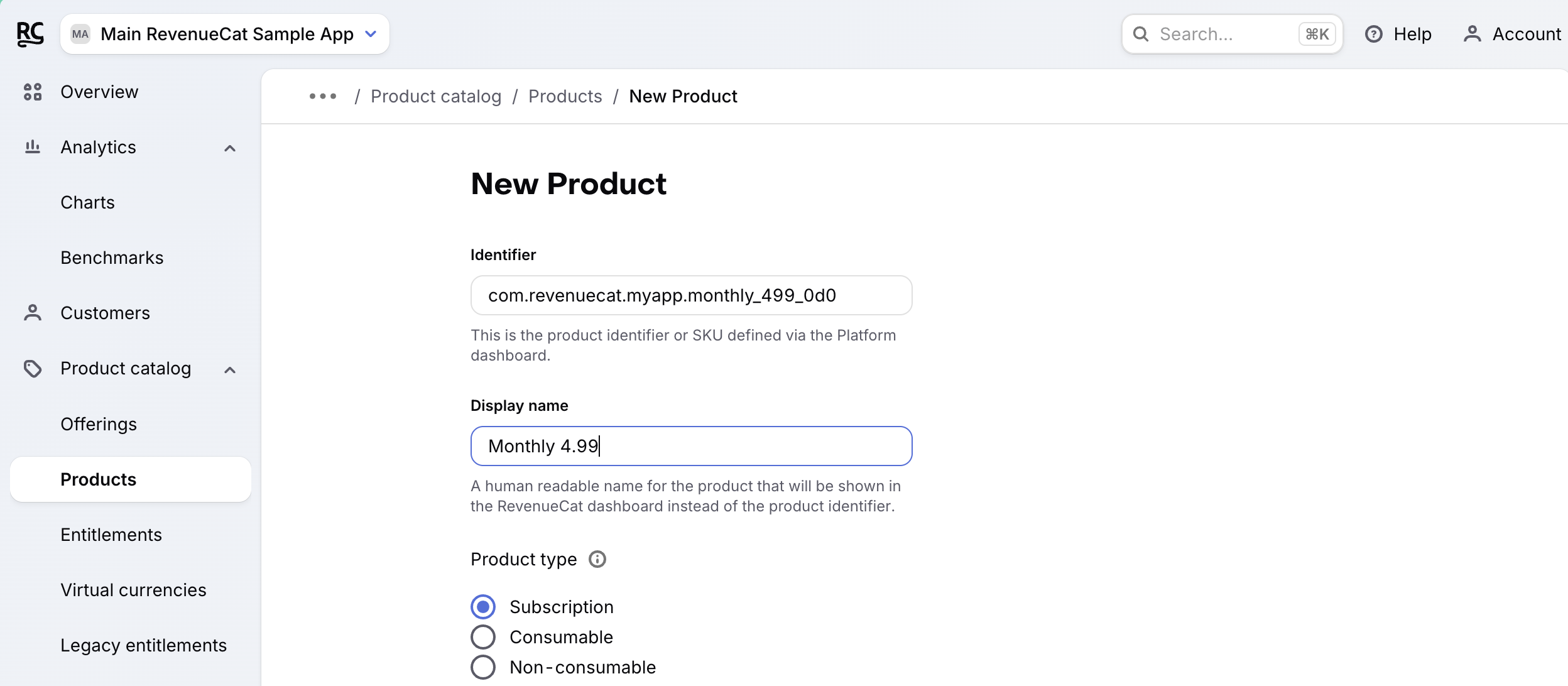
Once added, you can attach this product to an entitlement to define what access it unlocks for your users.
Learn more about products and entitlements →