Collaboration
Invite others to collaborate on your project



Collaborators allow you to give team members controlled access to your RevenueCat Project.
Invite a Collaborator
To invite a collaborator, send them an invite from the Project settings > Collaborators tab.
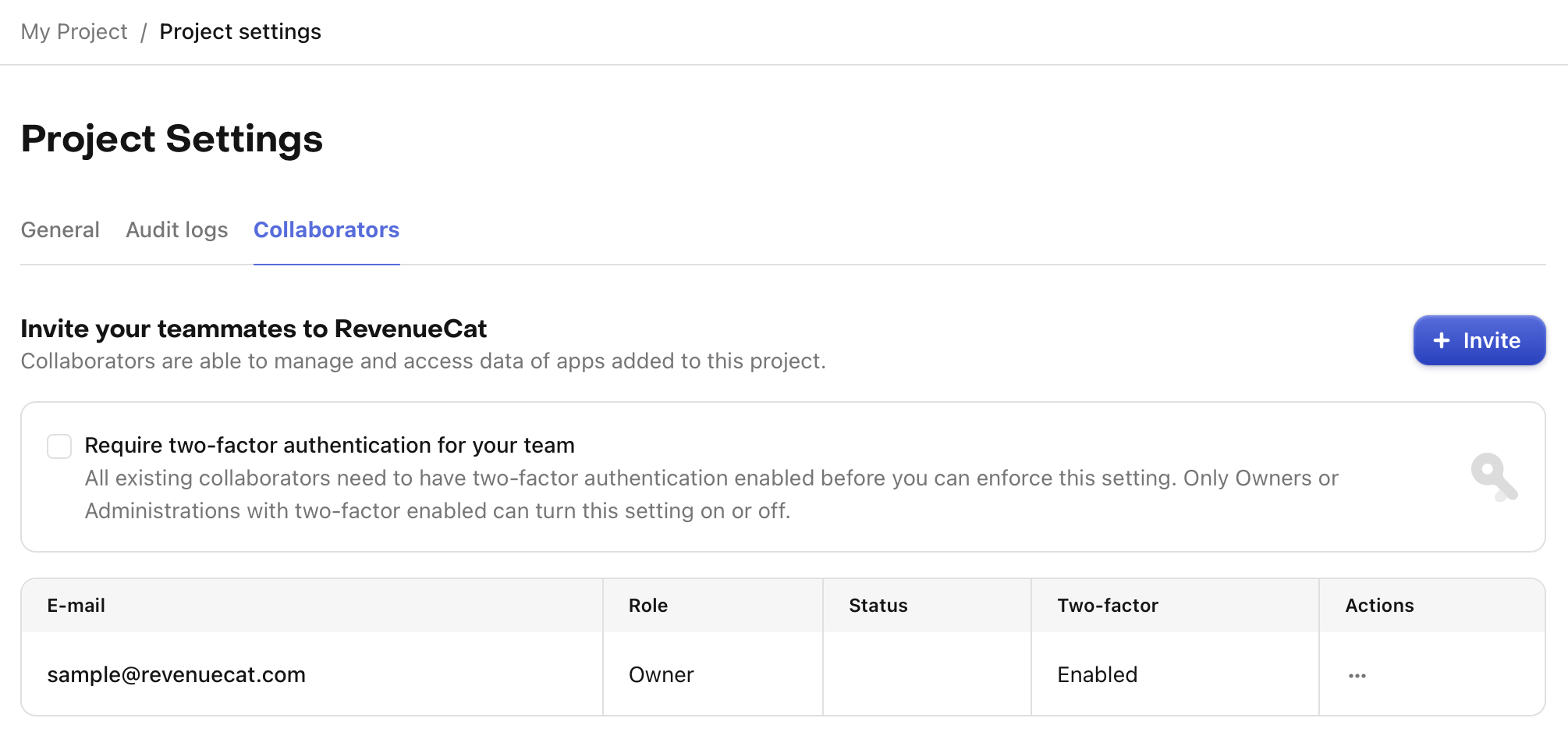
Add the collaborator's email, select their permission level, and send the invite.
Invited collaborators will receive an email where they can accept your invitation. Collaborators will be prompted to first create a RevenueCat account, if needed.
If you have multiple projects that you wish to share, you will need to repeat the invite process for each project that you want to collaborate with them on.
Permissions
All roles and permission levels are now available on every plan, giving teams the flexibility to manage access with the right level of control.
Overview
| Permission | Administrator | Operations | View Only | Growth | Developer | Customer Support |
|---|---|---|---|---|---|---|
| View customer timelines | ||||||
| View financial data (Charts, Overview, Experiments Results) | ||||||
| Invite collaborators | ||||||
| Edit app settings (bundle ID, package name, etc.) | ||||||
| Edit Paywalls, Offerings, Entitlements, and Products | ||||||
| Edit integrations | ||||||
| Grant entitlements | ||||||
| Issue refunds | ||||||
| Block or delete customers |
Administrator
This role is for anyone who needs similar access as the project owner. They can view and manage everything except billing. This role can invite other collaborators to your project.
They cannot view or manage any account billing information (only the project owner can perform these actions).
Operations
This role combines the permissions of the Growth, Developer, and Customer Support roles. They can view financial data, manage project configuration and integrations, and manage individual customers.
They cannot view or manage billing, IAM, SSO, API keys, collaborators, audit logs, shared metrics, AI settings, or two-factor authentication.
View Only
This role is for anyone who needs to view most project data but not make any edits. Perfect for people that need access to revenue metrics, customer transactions, etc. but don't need make any changes. This role can still save custom Charts and Customer Lists.
This role cannot make any changes to your app or project.
Growth
This role is for anyone who needs control over your project but is not a developer. They can view nearly everything, and edit things like Paywalls, Offerings, Entitlements, and Products.
This role cannot edit any app settings (bundle id, package name, etc.) or integration configuration details.
Developer
This role is for anyone who needs control over your app config and integrations, but not view any financial data. They can view and manage customer data available on Customer Timelines.
This role cannot access aggregated financial data through Charts, Overview, Experiments, or Customer Lists - but can view individual customer transactions, including the price that was paid.
This role cannot generate Secret API keys. See secret key permission levels for details.
Customer Support
This role is for anyone who needs to manage individual customers, but not view any financial or most app settings. They can see Customer Timelines, grant Entitlements, issue refunds, and delete customers.
This role cannot access any financial data through Charts, Overview, Experiments, or Customer Lists - but can view individual customer transactions. They also cannot view most app config settings.
Single Sign-On Collaborators
All users who log into RevenueCat using the SSO domains you configured will be able to collaborate automatically. Their access depends on the SSO groups they are part of. Please refer to our SSO guide for more information.