Account security
Two-factor authentication, OAuth tokens, and SSO for your RevenueCat account



It's a dangerous world out there! But you can make things much safer by enabling two-factor authentication in your RevenueCat account settings.
Once you do, you'll need a code generated on your mobile device any time you log in to your RevenueCat account.
From the same page, you can also review and revoke OAuth clients that have access to your account.
RevenueCat protects your account by securely checking if your password has been exposed in public data breaches. We won't allow using an unsafe password during sign-up. If we detect that your existing password has appeared in a data breach, you may also be required to reset your password before logging in. If this happens, use the "Forgot password" link on the login page to set a new, secure password.
Enabling Two-Factor Authentication
1. Set up
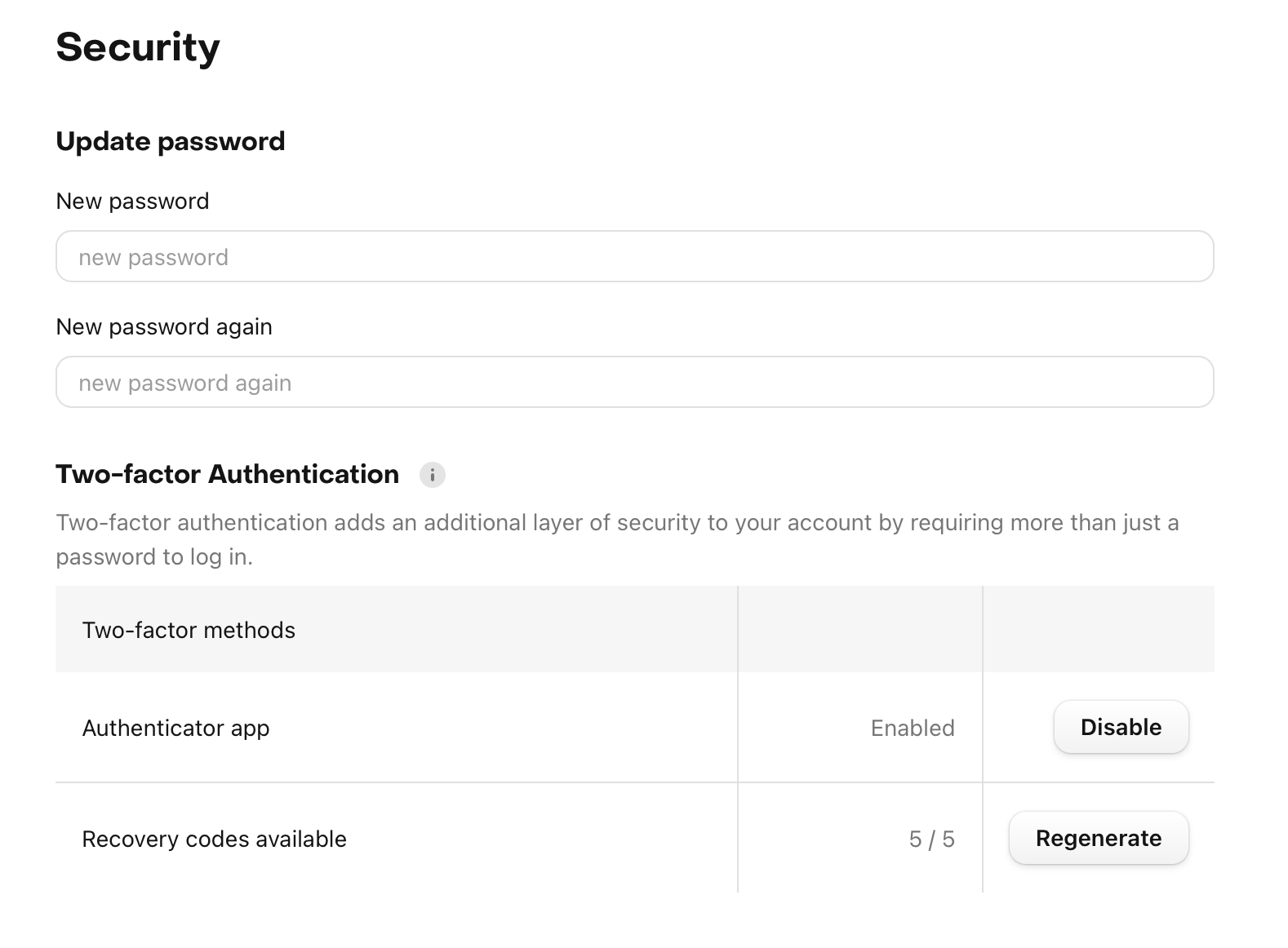
Navigate to your Account → Security settings in the RevenueCat dashboard and click Set up under Two-factor Authentication to begin the setup process.
2. Scan barcode
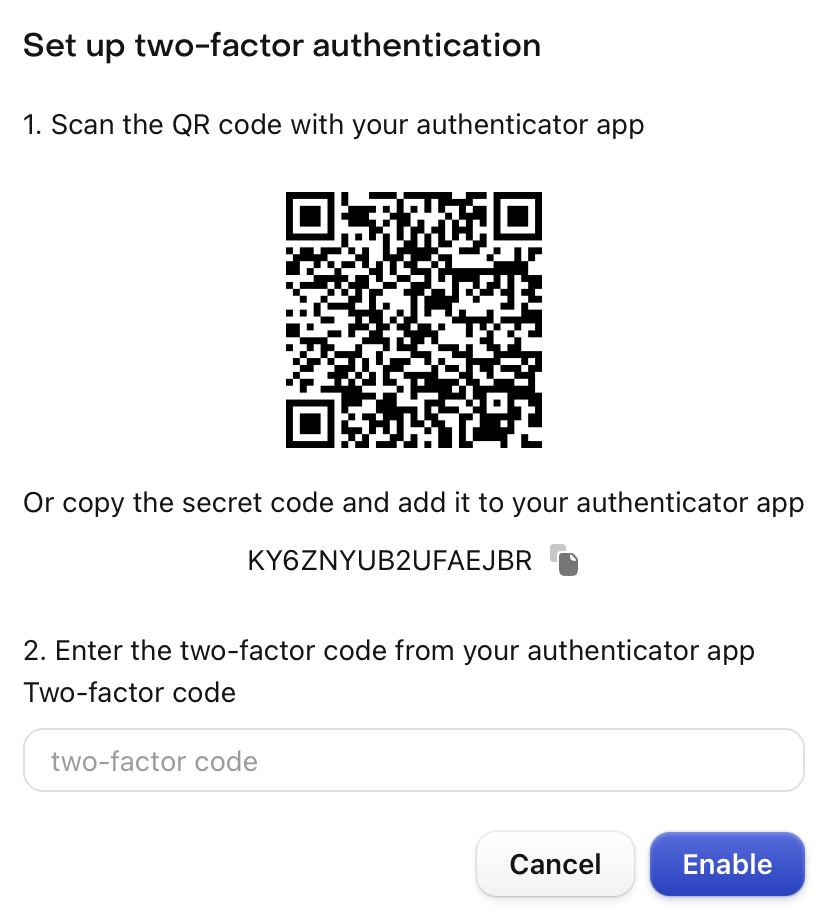
You'll be prompted to re-enter your password. Once re-authenticated, you'll be presented with a QR code that you should scan with an authenticator app such as Authy or Google Authenticator.
3. Enter two-factor code
Enter the two-factor code from the authenticator app then click Enable.
4. Save recovery codes
Save your recovery codes. You'll only be shown these codes once, and are required if you ever lose access to your authenticator app. Some authenticator apps, like Authy, also provide their own backups in case you lose your phone.
If you ever lose access to your two-factor code from your authenticator app (e.g. you got a new phone) the recovery codes are required to access RevenueCat.
For security reasons, RevenueCat Support may not be able to restore access to accounts with two-factor authentication enabled if you lose your two-factor authentication credentials or lose access to your account recovery codes.
Enforcing Two-Factor For Your Project
If you have invited collaborators to your app, you can see if they've enabled two-factor authentication for their account on the Project → Collaborators page.
Project Owners and Administrators also have the ability to enforce two-factor authentication for any new collaborators. With this setting enabled, invited collaborators will not be able to join your project until they've set up two-factor authentication for their account.
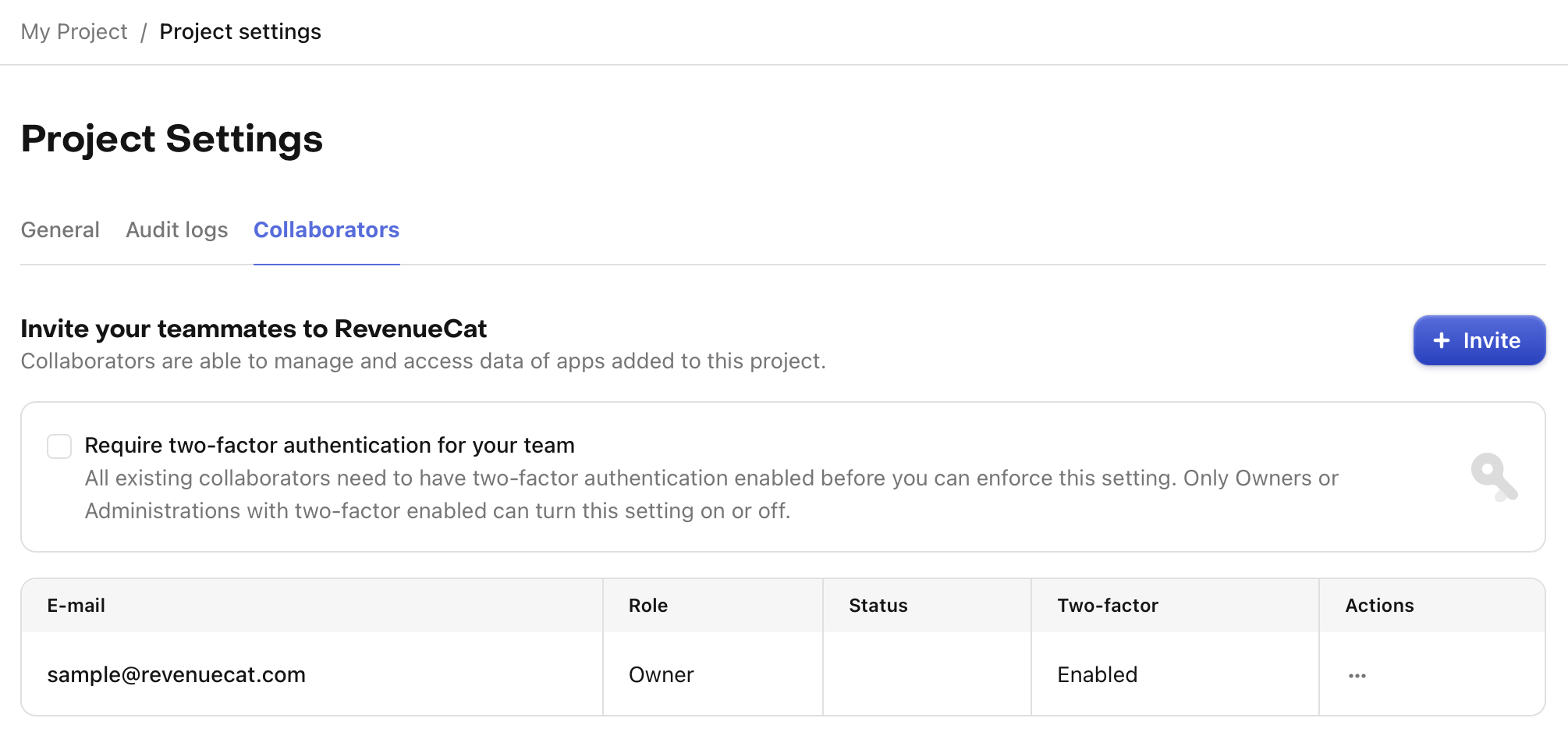
Before you can enforce two-factor authentication for your project, all existing collaborators must already have two-factor authentication enabled. You can remove current collaborators and re-invite them if you need to enforce two-factor immediately.
Disabling Two-Factor Authentication
To disable two-factor authentication, navigate to your Account → Security settings in the RevenueCat dashboard and click Disable under Two-factor Authentication.
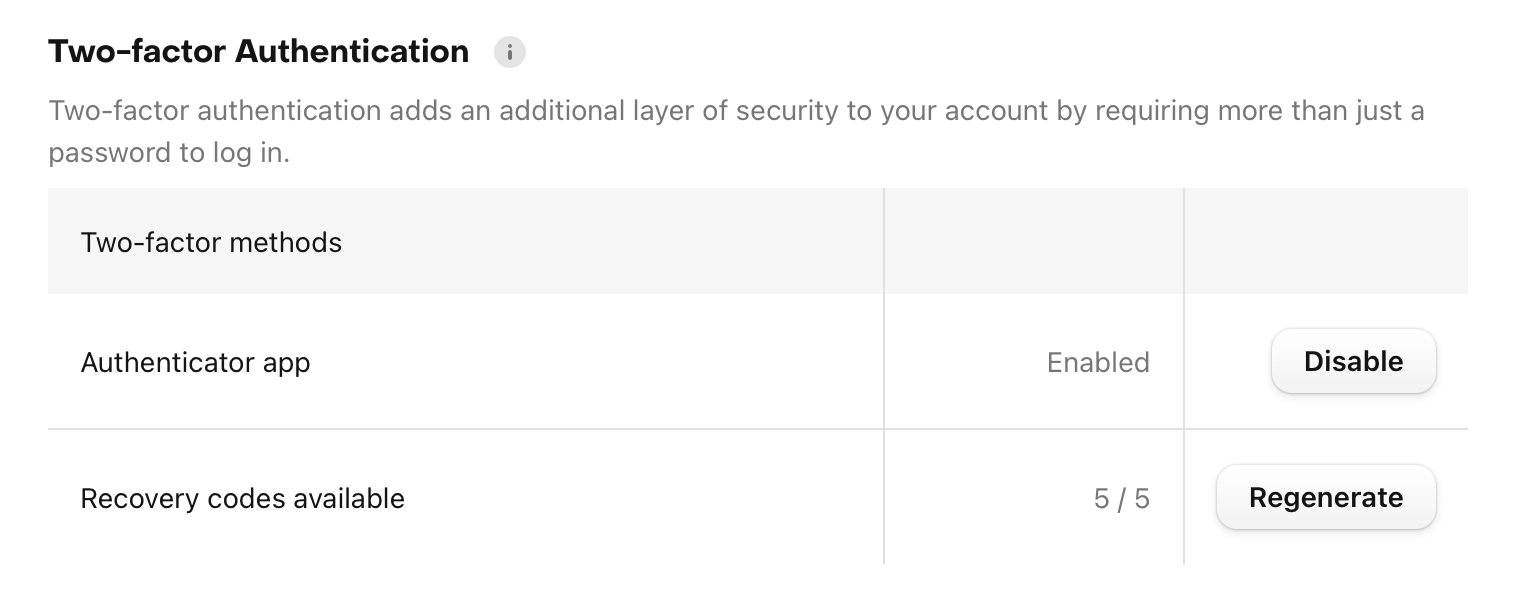
If you are a collaborator on a Project that requires two-factor authentication, you must leave that project before disabling.
Managing OAuth tokens
Revoke or edit third-party client access from Account → Security. For how OAuth connections work, see OAuth.
- Open Account → Security.
- Under Active OAuth tokens, find the client.
- Click the revoke button and confirm.
Revoking immediately invalidates that token. The client can no longer call the RevenueCat API as you.
You can only manage tokens on your own account. If a collaborator authorized a client, they revoke it from their Account → Security page.
If you authorized the same client more than once, each authorization is a separate row. Revoke each row you want to remove.
You can also edit the permissions for an active token from the same list.
Setting Up Single Sign-On
Please refer to our SSO guide for more information on activating SSO on your account.