Connect the Galaxy Store to RevenueCat
How to create your Galaxy Store app in RevenueCat and connect it with a Seller Portal service account



This guide shows you how to connect your Galaxy Store app to RevenueCat. You'll create the app in RevenueCat, then create a Seller Portal service account so RevenueCat can call the Galaxy Store Developer API on your behalf. By the end, RevenueCat can validate purchases for your app.
If you haven't published your app in the Galaxy Store yet, start with Publish your app on the Galaxy Store to create your Seller Portal account and register your app.
1. Create your app in RevenueCat
- Create a new app in RevenueCat and select the Galaxy Store as your platform.
- Enter your app's name and package name.
2. Create a service account
To allow RevenueCat to access the Galaxy Store Developer API on your behalf, create a service account and provide its credentials.
-
Sign in to the Galaxy Store Seller Portal with an admin account. If you're not using an admin account, the UI for the next steps may not be visible.
-
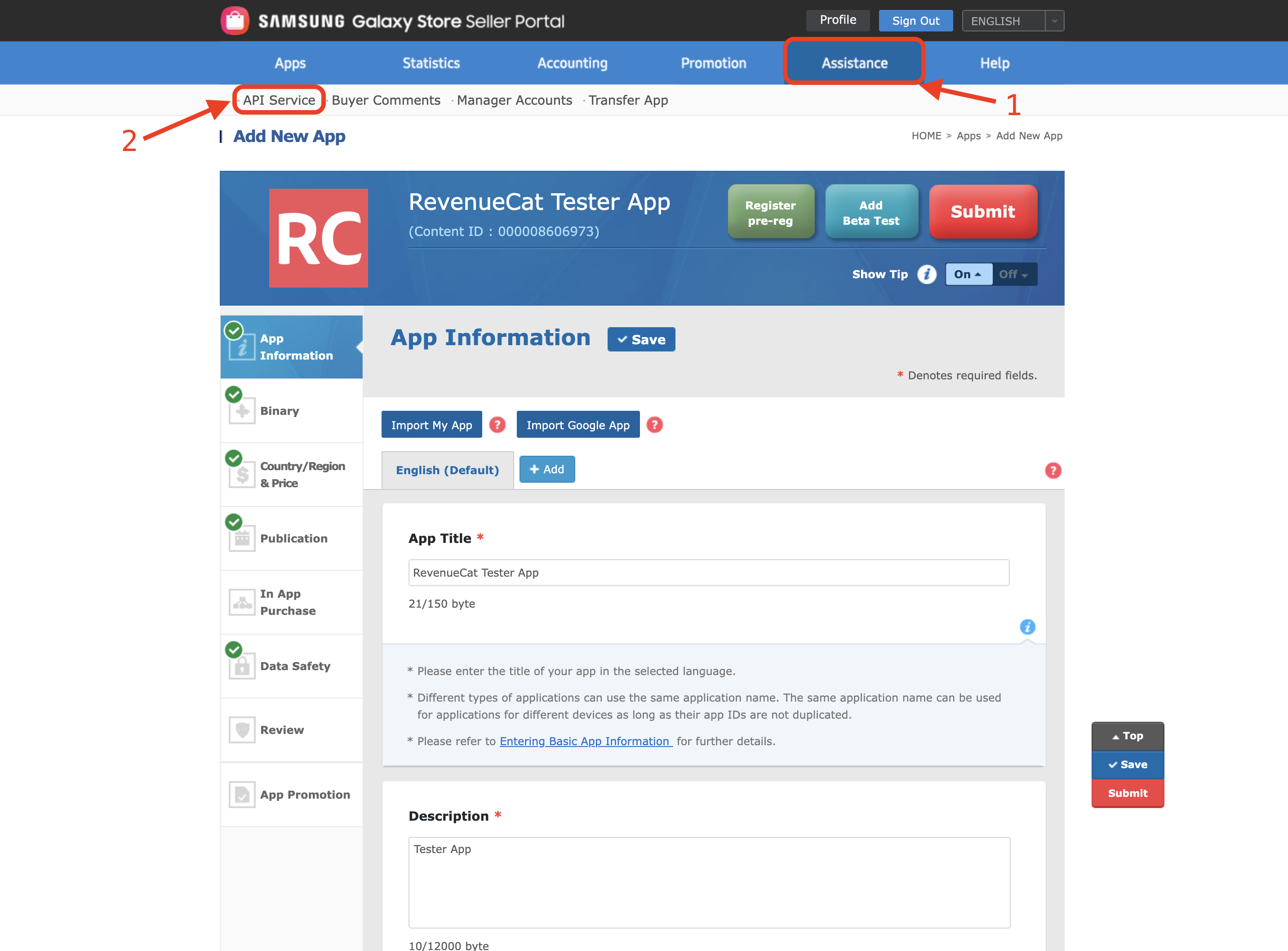
Click Assistance > API Service.
-
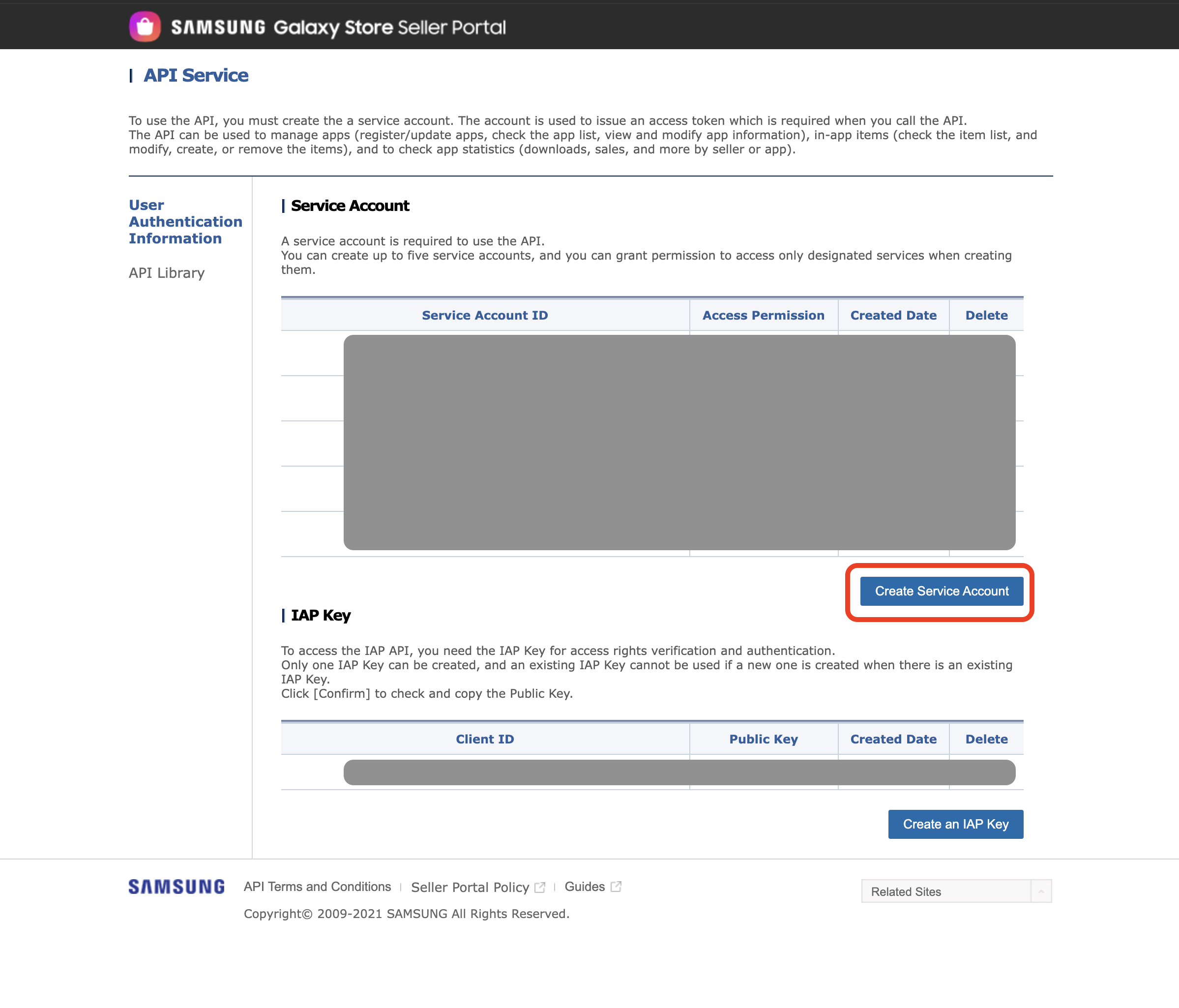
Click Create Service Account.
-
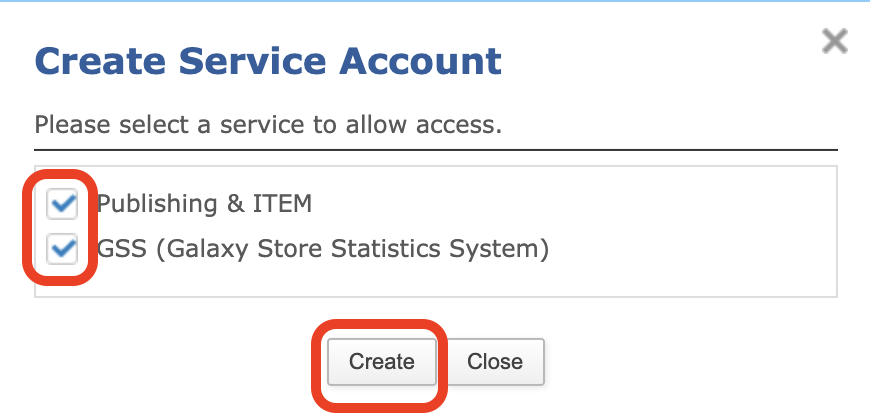
Select both Publishing & ITEM and GSS (Galaxy Store Statistics System), then click Create.
-
In the Service account created window, click Download Key to save the private key to a file, and copy the Service Account ID. Treat the key like a password and store it securely.
-
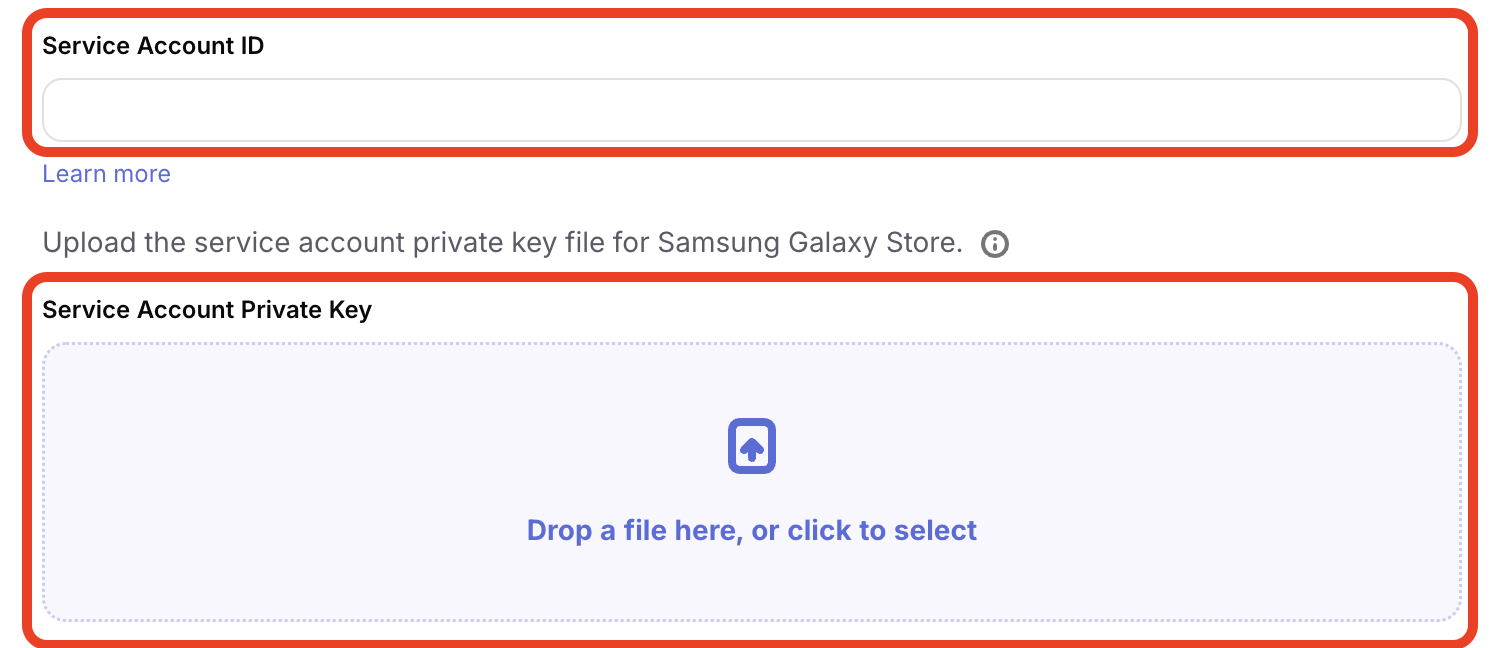
In the RevenueCat dashboard, enter your Service Account ID and upload the key file under Service Account Private Key.
-
Click Save changes.
Next steps
Now that your app is set up:
- Create products — Set up in-app purchases in Galaxy Store and RevenueCat
- Add the SDK to your app — Install the RevenueCat SDK with Galaxy Store support for Android or React Native
- Set up server notifications (optional) — Enable real-time purchase notifications