Component Properties



Paywalls are made up of individual components that you add and arrange, and those components each have their own properties to be configured that define how it looks and behaves.
Position properties
Position properties only apply to parent components, since they control how the child components are arranged relative to one another.
A parent component's axis controls whether its child components are arranged horizontally, vertically, or three-dimensionally.
Alignment determines how components are arranged against that axis; such as top, center, or bottom aligned elements across a horizontal axis.
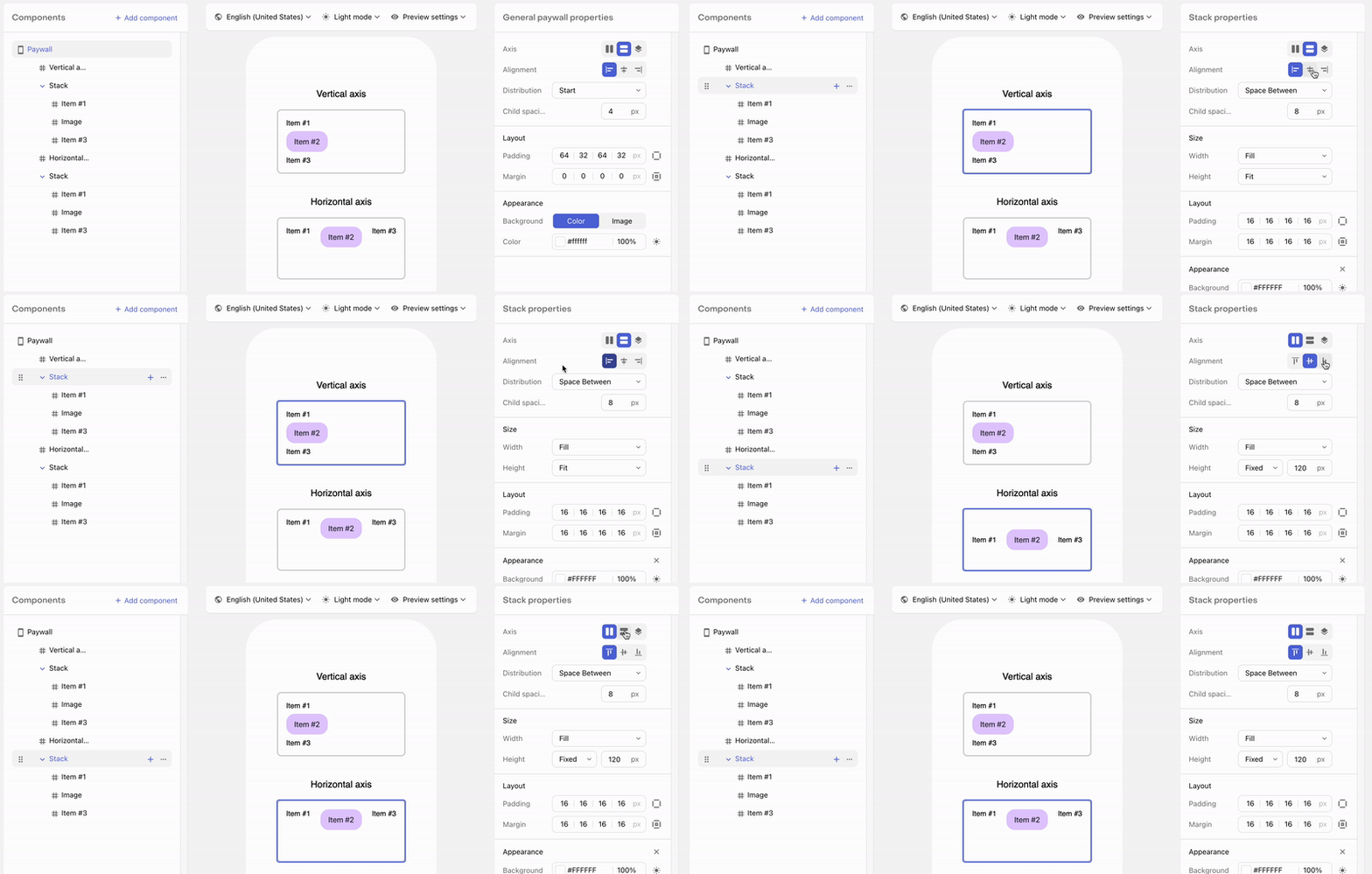
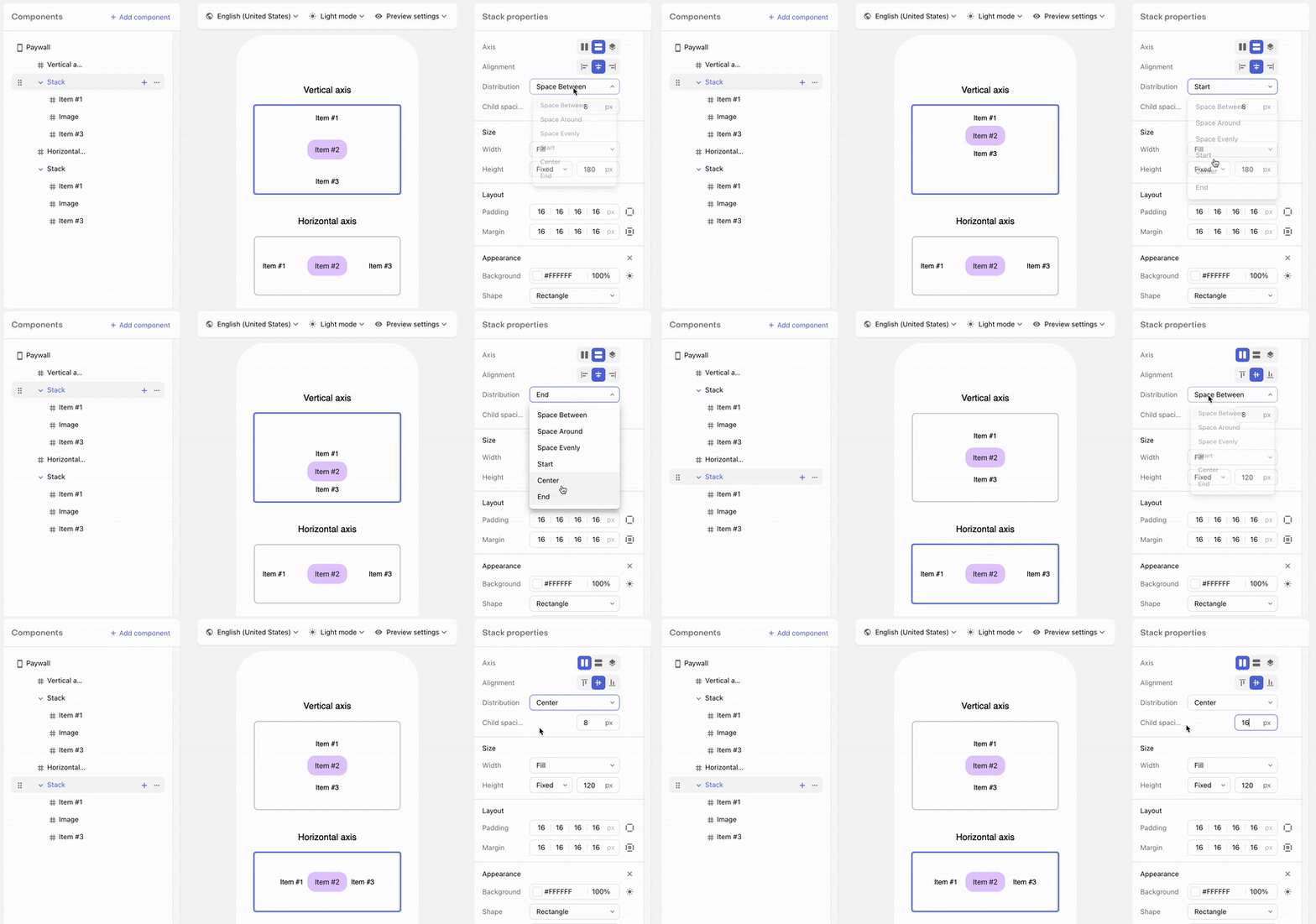
Distribution determines how components are spaced along the defined axis.
Last, child spacing determines exactly how much space should be set between each child component.
Size properties
Each component's width and height can be sized to:
- Fit the space needed for the content
- Fill the available space for the component
- Occupy a fixed space
Minimum and maximum sizes
When a width or height uses Fill, you can set a minimum, a maximum, or both. The component fills the available space, but never grows past its maximum or shrinks below its minimum.
Use limits to keep a phone-first paywall readable on larger screens. Content and buttons stop at a comfortable width on a tablet or an unfolded iPhone Duo instead of stretching edge to edge. For design tips on the iPhone Duo specifically, see How to make your paywall iPhone Duo-ready.
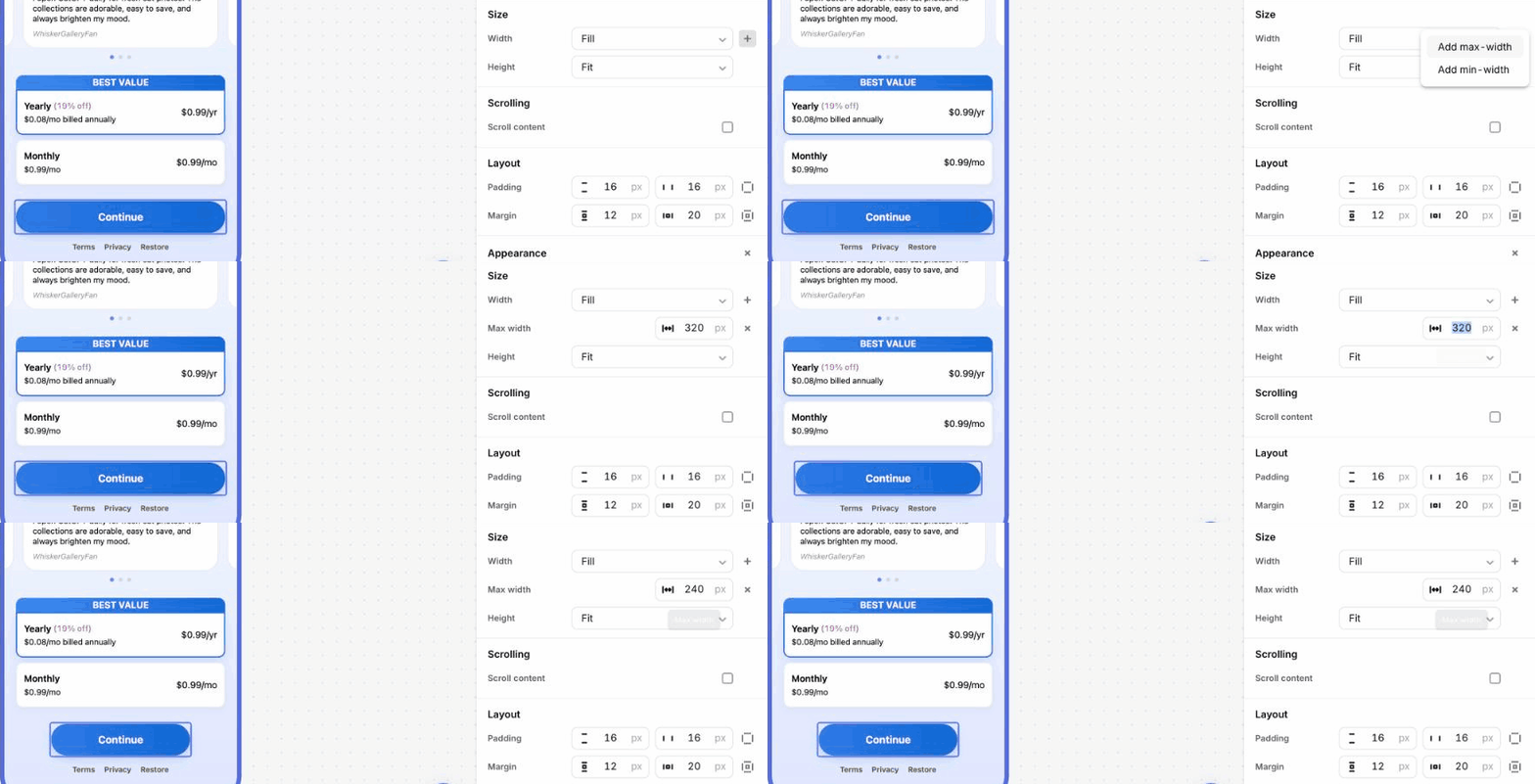
To add a minimum or maximum:
- Select the component and set Width (or Height) to Fill.
- Click + at the end of the row and choose Add max-width or Add min-width.
- Enter a value.
To remove a limit, click × on its row. Changing the size away from Fill removes both limits.
How minimum and maximum sizes behave
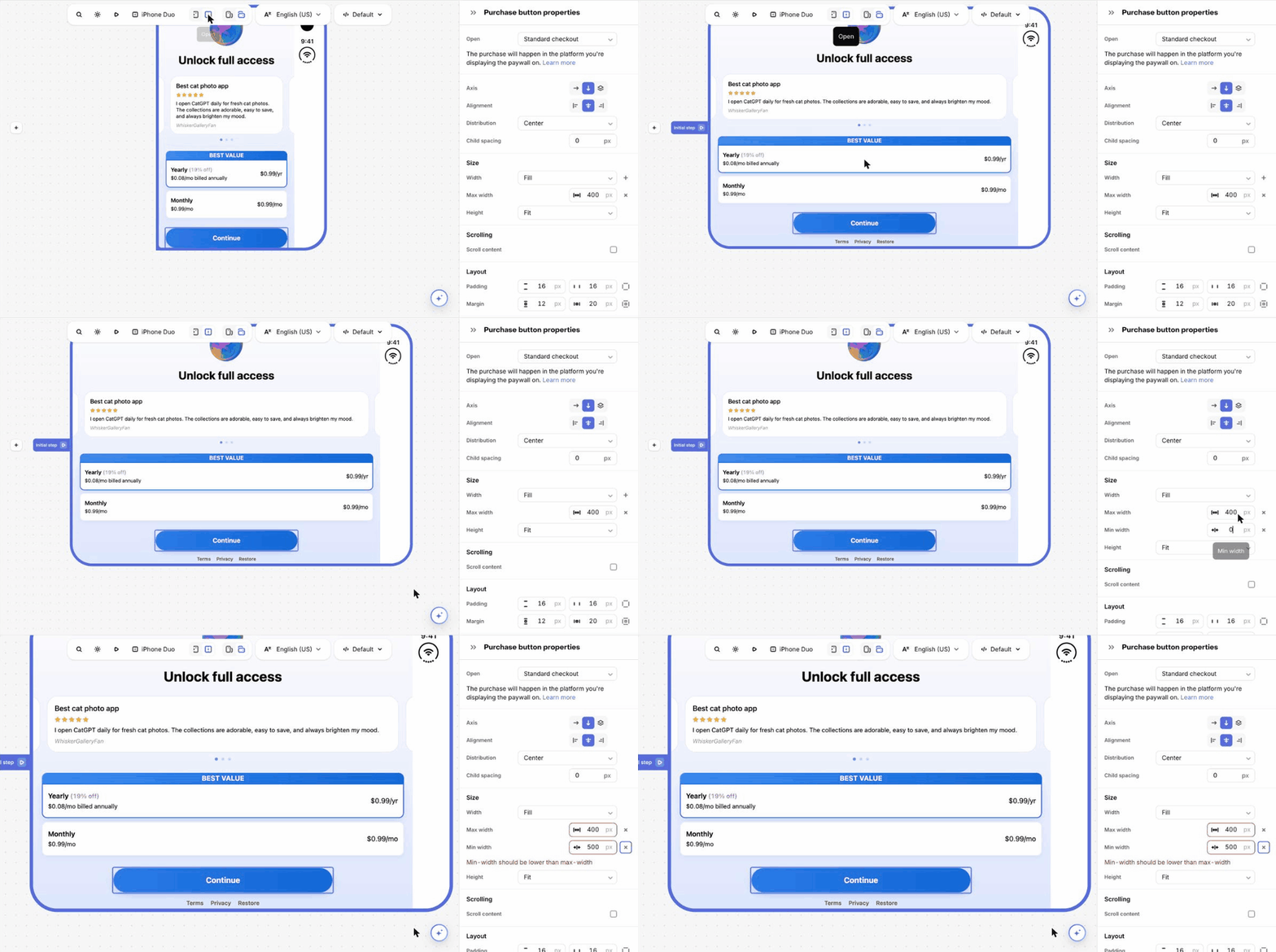
- A Fill size with a maximum grows with the available space up to its limit, then stops. The parent's alignment decides where the leftover space goes.
- Minimum and maximum sizes are only available on Fill and aren't supported for Fixed or Fit sizes.
Common patterns
| Goal | Setup |
|---|---|
| Keep content readable on a tablet, centered on a full-width background | Put the content in a stack with width Fill and a maximum (for example, 624), centered in a full-width parent that carries the background. |
| Full-width footer with buttons that stop growing | Leave the footer full width. Set the purchase button's width to Fill with a maximum and center it. |
| Side-by-side layout where one column stops growing | In a horizontal stack, give the text column Fill with a maximum. |
Minimum and maximum sizes require a recent SDK. See the minimum SDK versions for each platform.
Layout properties
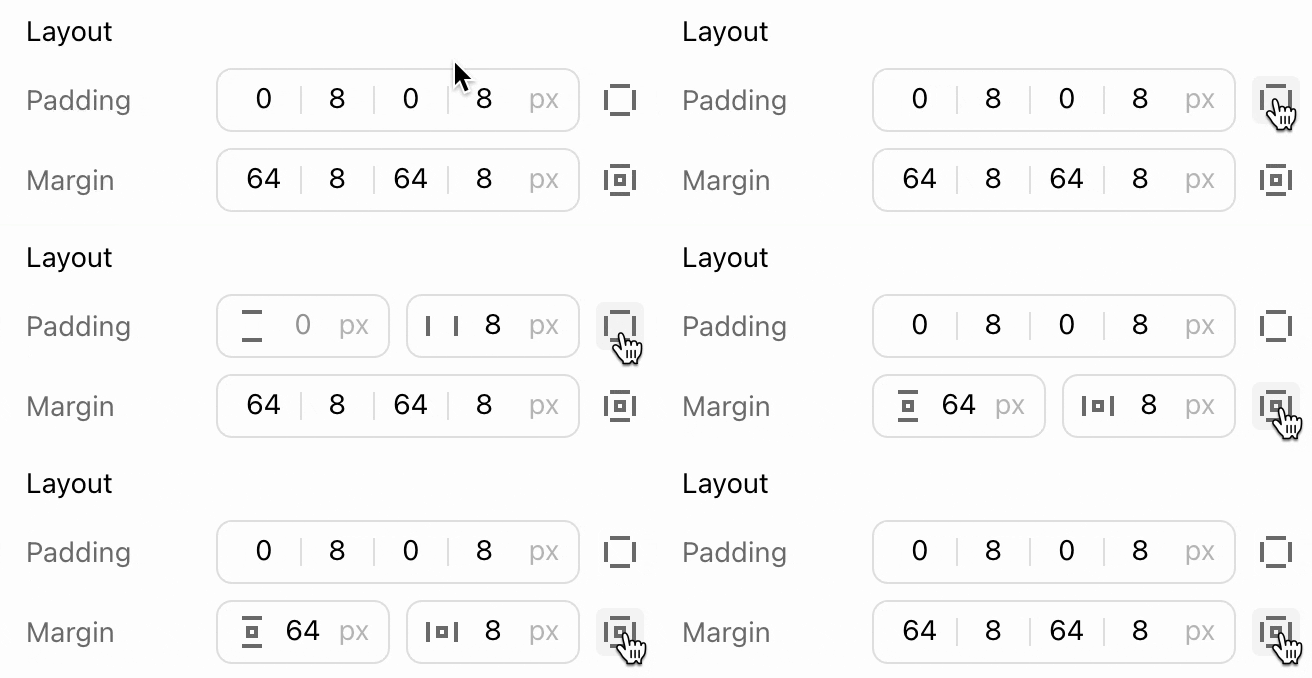
Each component's spacing can be configured through margin (added space outside of the component to create distance from adjacent components) and padding (added space within the component to create distance between the content and the edge of the component).
By default, you can configure each value uniquely, or you can click on the icon to the right of the property to switch to configuring horizontal and vertical margin and padding simultaneously,
Appearance properties
Each component may have a configurable background color, which can be a solid color or a gradient, and may have a specified opacity level.
A component's shape can additionally be configured to select between rectangle and pill.
Last, if the rectangle shape is used, then its corner radius can also be configured.
Border properties
Parent components can additionally have a specified border color and border width to create visual separation between them and other components.
Drop shadow
Parent components can have a drop shadow configured for them via a customizable position (x and y axis offset), blur (size of the shadow effect), and color.
Badge
Parent components can have badges configured for them that can be used to easily append an element on top of the component that has its own text and appearance. Badges are most frequently used to callout package discounts, special offers, etc, but can also be configured for other use cases you have in mind.
Badges can be configured in either a nested or overlaid style. Nested badges on the inside border of parent component they're added to, while overlaid badges are centered on top of the border.
The exact position on the border is determined by the axis of that badge, as well as any additional margin you add to adjust its position along that axis.
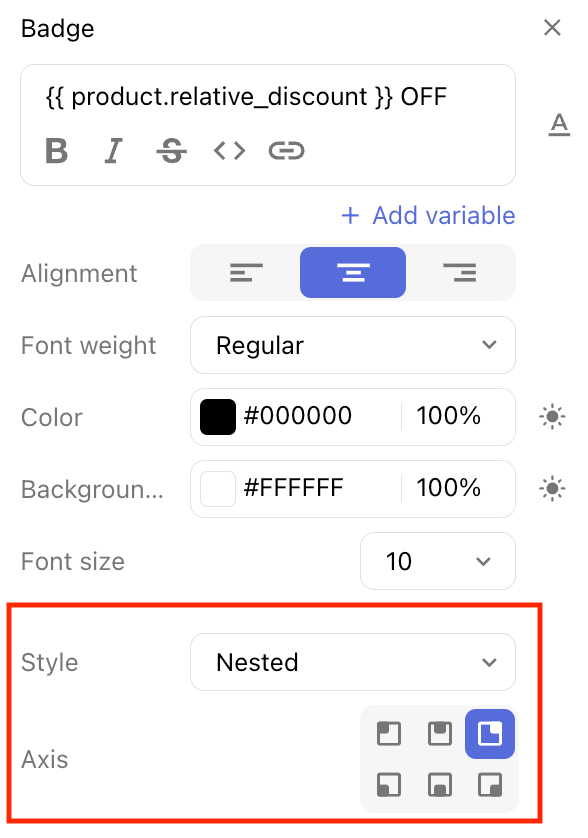
Badges can additionally have their own text styling, border, and drop shadow so they have a unique look and feel to draw a customer's attention to them.