Rules



Rules change what a paywall shows based on conditions you define, so one paywall can cover many scenarios. Depending on the rule type, you can change a component's visibility, its text, or both.
Rule types
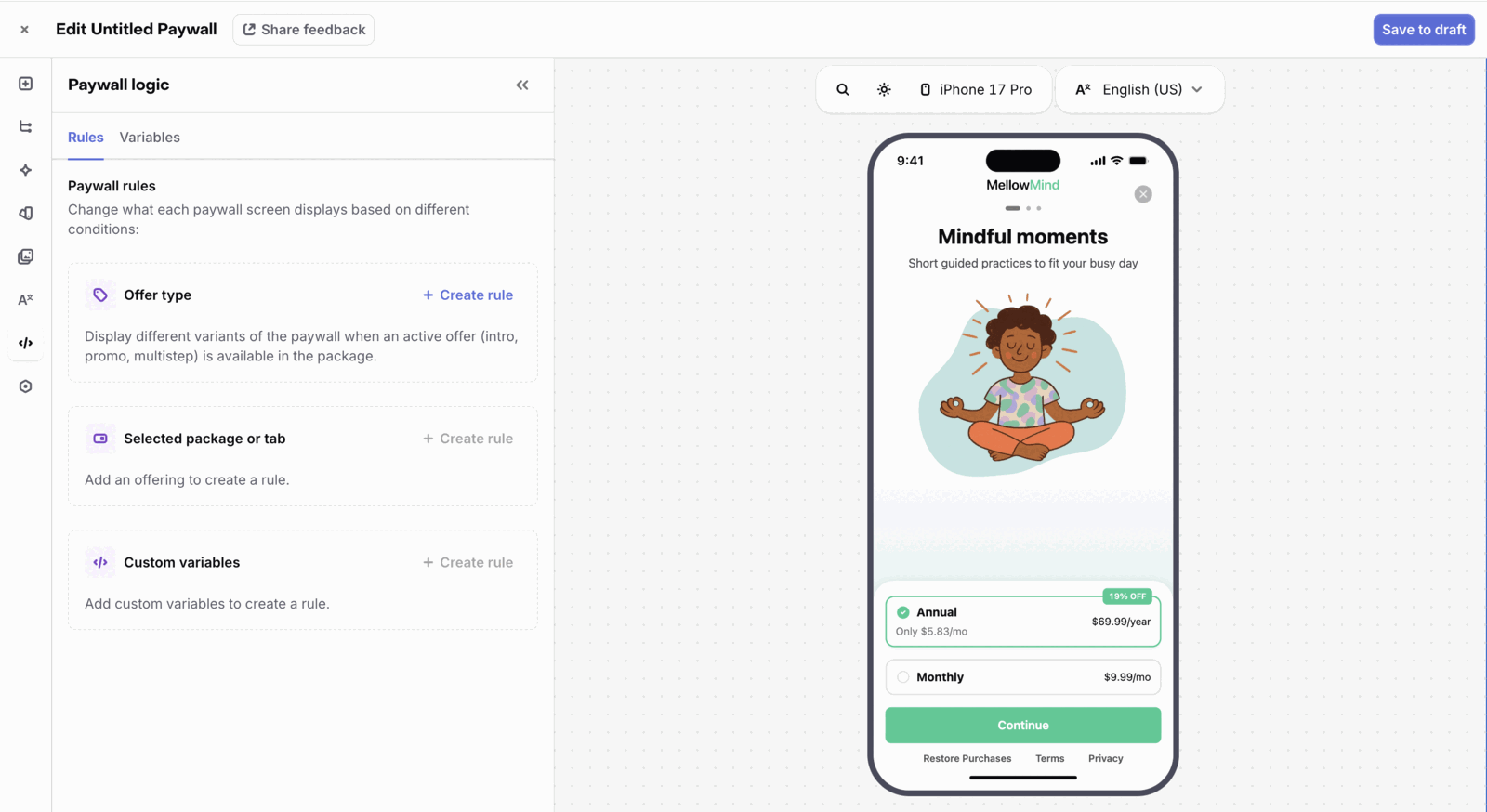
Every rule is created from one of three cards in the Paywall logic tab: Offer type, Selected package or tab, or Custom variables.
| Rule | Where you create it | When it takes effect | What you can change |
|---|---|---|---|
| Offer — Introductory | Offer type | The selected package includes an introductory offer, such as a free trial or a discounted first purchase | Visibility and text overrides |
| Offer — Promotional | Offer type | The selected package includes a promotional offer | Visibility and text overrides |
| Package identifier | Selected package or tab | The selected package matches the identifier you define | Visibility only |
| Custom variable | Custom variables | The paywall is rendered with or without the custom variable you define | Visibility only |
| Offer — Multiphase | Offer type | The selected package includes an offer with multiple phases, such as a free trial followed by a discount (Google Play and Web Billing only) | Text overrides only |
| Selected tab | Selected package or tab | The customer selects a tab in a tabs component | Visibility and text overrides |
Each rule is connected to a single variable. If you need multi-variable conditions (e.g., "show this when the user is in the US AND selected the annual plan"), compute the result in your app and pass it as a single custom variable (e.g., a boolean show_annual_us_promo), then compute the rule from it.
Creating a rule
To access the Paywall Rules page, select the Paywall logic tab in the left sidebar.
Here you'll see a button to create a new rule.
First, pick what the rule should be based on (see the table above).
Then, select existing components from your paywall to change their visibility, or add new components that are only visible for that rule type.
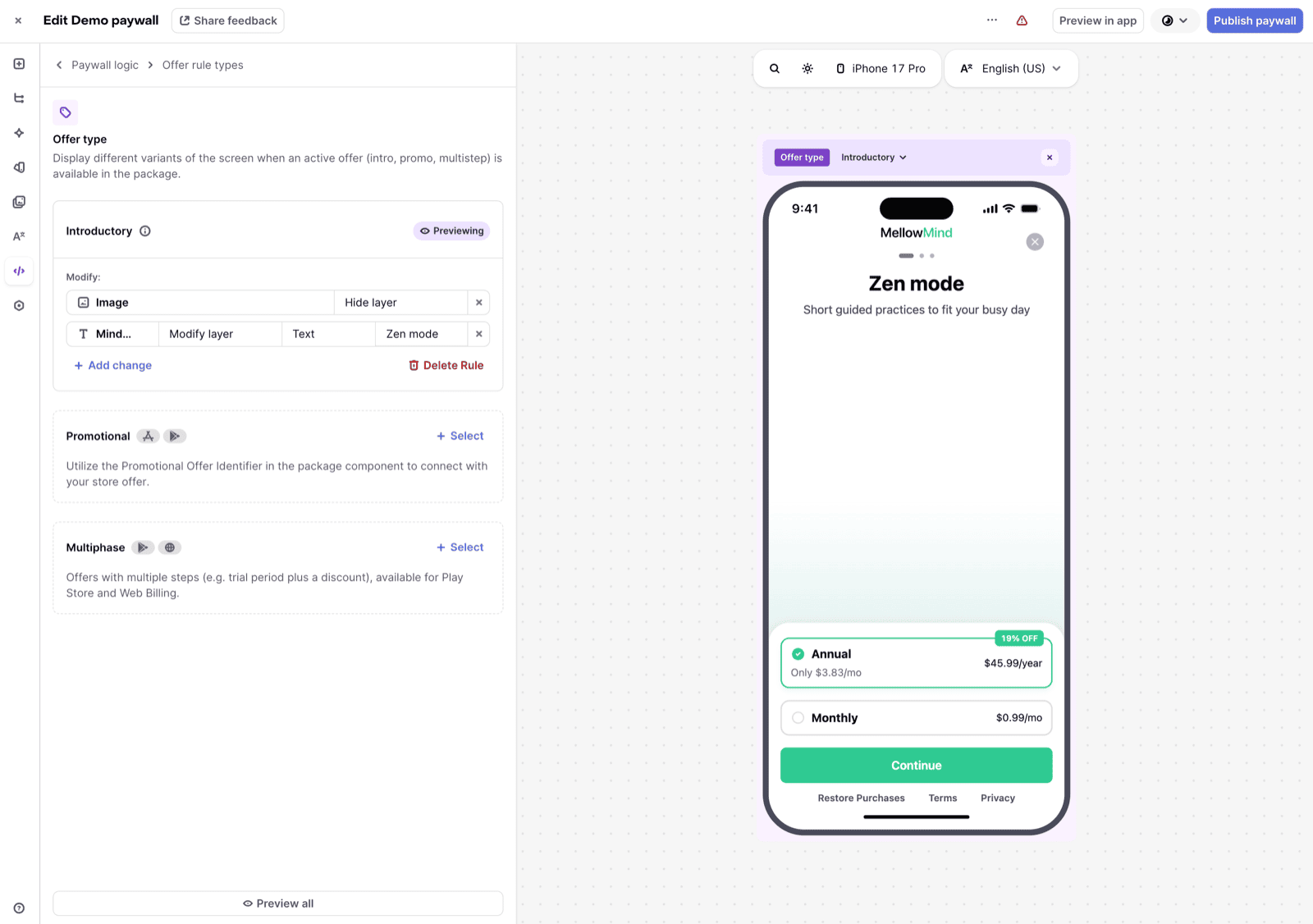
While you're viewing a rule (shown by the purple highlight around the preview), any component you add is visible only for that rule. You can change this later if you need it visible in more cases.
Once published, all rules are evaluated at runtime, so a component can carry multiple rules. Rules apply in the order listed in the table above, with custom variables applied A to Z.
Limitations
You can't change the visibility of these components with Rules:
- Express checkout buttons
- Individual pages of a carousel
- Individual tabs
- Footer
- Sheet
- Purchase button
Rules require the following minimum SDK versions:
| RevenueCat SDK | Minimum version |
|---|---|
| purchases-ios | 5.62.0 and up |
| purchases-android | 9.24.0 and up |
| react-native-purchases | 9.14.0 and up |
| purchases-flutter | 9.15.0 and up |
| purchases-unity | 8.8.0 and up |
| purchases-kmp | 2.10.0+17.52.0 and up |
| purchases-capacitor | 12.3.0 and up |
Reacting to interactions
If your paywall uses a tabs component, you can show, hide, or modify other components based on which tab the customer has selected. This is useful when each tab represents a different plan (e.g. Lite and Pro) and each plan needs its own packages, purchase button text, or badges.
The rule always follows the currently selected tab. Before the customer taps anything, that's the Default tab configured on the tabs component.
To create one:
- Open the Paywall logic tab and click Create rule on Selected package or tab.
- Click Select component, then choose your tabs component from the first dropdown.
- Choose the tab in the second dropdown, then click Add changes.
- Click Add change to pick the layers this tab should affect, and set each one to Show layer, Hide layer, or Modify layer.
For example, put each plan's packages in its own package stack, then use a tab rule to show the stack that matches the selected tab and hide the other.
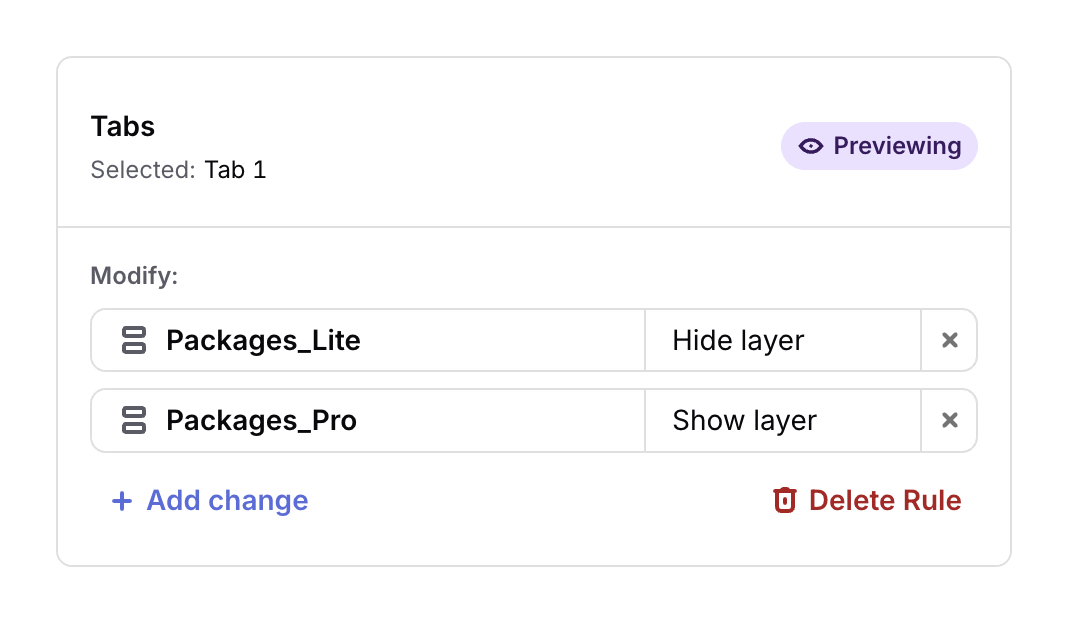
A tab rule can change components inside the tabs component or elsewhere on the same paywall screen. In addition to visibility, you can override the text, font size, alignment, font family, and font weight of a text layer.
How tab rules behave
- Each tabs component has its own rule, and you configure the changes for each tab separately. If a screen has two tabs components, you'll configure a rule for each.
- A tab rule can't be combined with another condition in a single rule (for example "yearly tab selected and an introductory offer is available"). Each rule is evaluated on its own.
- Rules are configured per paywall screen, so a tab rule can only reference a tabs component on the same screen.
Tab rules require the following minimum SDK versions:
| RevenueCat SDK | Minimum version |
|---|---|
| purchases-ios | 5.83.1 and up |
| purchases-android | 10.16.1 and up |
| purchases-js | 1.48.0 and up |
| Other SDKs | Not supported |
On versions below these minimums, tab rules are ignored and the affected components keep their default appearance.
Examples
Show a trial timeline only when a trial is available
Suppose your paywall has two components: a timeline that illustrates the trial period, and a features list that you want to show when no trial is available. You can use a rule to swap their visibility based on whether the selected package includes an introductory offer.
- Add the features list component to your paywall.
- Open the Paywall logic tab, click Create rule on Offer type, and choose Introductory.
- Select the Present case and set the features list to Hide Layer.
- While the introductory offer rule preview is active (a banner should be displayed above the preview), go to the Add components tab and add the timeline component to your paywall.
- Go back to Paywall logic to check the rule is displaying correctly the components you want to hide and show.
You can preview each case by clicking on it in the rules panel, or by using the Rule Preview button at the top of the screen frame.
Show different packages based on a custom variable
Suppose you have an offering that contains both family sharing and non-family sharing packages, and you want to control which set is shown at runtime.
- In your paywall, place the family sharing packages in one package stack and the non-family sharing packages in a second package stack.
- Create a boolean custom variable named
family-sharing. - Open the Paywall logic tab, click Create rule on Custom variables, and choose the
family-sharingvariable. - In the true case, show the family sharing stack and hide the non-family sharing stack.
- In the false case, do the opposite.
At runtime, pass the variable into the paywall to control which package stack is displayed.
Update the purchase button and a badge from the selected tab
Suppose your paywall has a tabs component named Plan containing a Lite and a Pro tab, and you want the purchase button to read "Subscribe to Lite" or "Subscribe to Pro", with a "Most popular" badge that only appears on the Pro tab.
- Add the tabs component and rename its tabs to
LiteandPro. - Add the badge to your paywall, outside the tabs component, and set it to hidden.
- Open the Paywall logic tab and click Create rule on Selected package or tab.
- Choose the
Plancomponent and theProtab, then click Add changes. - Add a change on the purchase button's text layer, set it to Modify layer, choose Text, and enter "Subscribe to Pro".
- Add a second change on the badge and set it to Show layer.
- Repeat for the
Litetab, setting the purchase button text to "Subscribe to Lite".
Because the badge is hidden by default, it only appears while the Pro tab is selected.