Custom Metadata



You can include custom metadata when making purchases through the Web SDK or Web Purchase Links. RevenueCat adds the metadata to webhook events and, depending on your billing engine, passes it to the Stripe customer object or the Paddle transaction, so you can use it in other systems such as marketing or attribution tools.
Metadata support
If you're using the Web SDK:
- Custom metadata (key-value pairs) with
string,number,booleanornullvalues can be included with the purchase call. - Any UTM parameters present in the URL are collected automatically.
If you're using Web Purchase Links:
- Custom metadata with
stringvalues can be included asmetadata[key]=valueURL parameters. See how to send custom metadata through a Web Purchase Link. - UTM parameters that are present in the URL are collected automatically.
Supported UTM parameters
Any of the following parameters' values will be stored if they're present in the URL where the purchase is initialized:
utm_sourceutm_mediumutm_campaignutm_termutm_content
Here's an example Web Purchase Link URL, including all UTM parameters: https://pay.rev.cat/wlzoigfbnthvjcaw/?utm_source=google&utm_medium=ppc&utm_campaign=black_friday&utm_term=cat+food&utm_content=emailcta
How to send custom metadata when invoking purchase() in the Web SDK
When invoking purchase(), you can provide a metadata object using the PurchaseParams interface:
- Web (JS/TS)
    try {
        const {customerInfo} = await Purchases.getSharedInstance().purchase({
            rcPackage: pkg,
            metadata: {
                a_custom_key: "a custom value",
            },
        });
        if (Object.keys(customerInfo.entitlements.active).includes("pro")) {
            // Unlock that great "pro" content
        }
    } catch (e) {
        if (
            e instanceof PurchasesError &&
            e.errorCode == ErrorCode.UserCancelledError
        ) {
            // User cancelled the purchase process, don't do anything
        } else {
            // Handle errors
        }
    }
The metadata property accepts a key-value object with any custom data you want to send along with the purchase.
The accepted values are string, number, boolean and null.
purchases-js will also automatically collect any utm parameters in the URL and send it as metadata when invoking purchase().
How to send custom metadata through a Web Purchase Link
Add a metadata[key]=value URL parameter for each key you want to send. Web Purchase Links attach the metadata to the purchase the same way as purchase() in the Web SDK, whether the link shows the default package selection page or a paywall.
https://pay.rev.cat/<someProductionTokenWeGenerate>/<yourAppUserId>?metadata[referral_id]=abc123&metadata[campaign]=spring_launch
Values from the URL are always sent as strings. Each parameter must stay within these limits:
| Constraint | Limit |
|---|---|
| Key length | Up to 40 characters |
| Key format | Can't start with rc_ or contain [ or ] |
| Value length | 1 to 500 characters |
| Number of keys | Up to 40 per link |
Parameters outside these limits are skipped, and the purchase continues without them. If the same key appears more than once, the last value is used.
URL-encode the key and the value separately, and leave the = between them unencoded. The brackets can be encoded, so metadata%5Breferral_id%5D=abc123 also works.
How to use the collected metadata
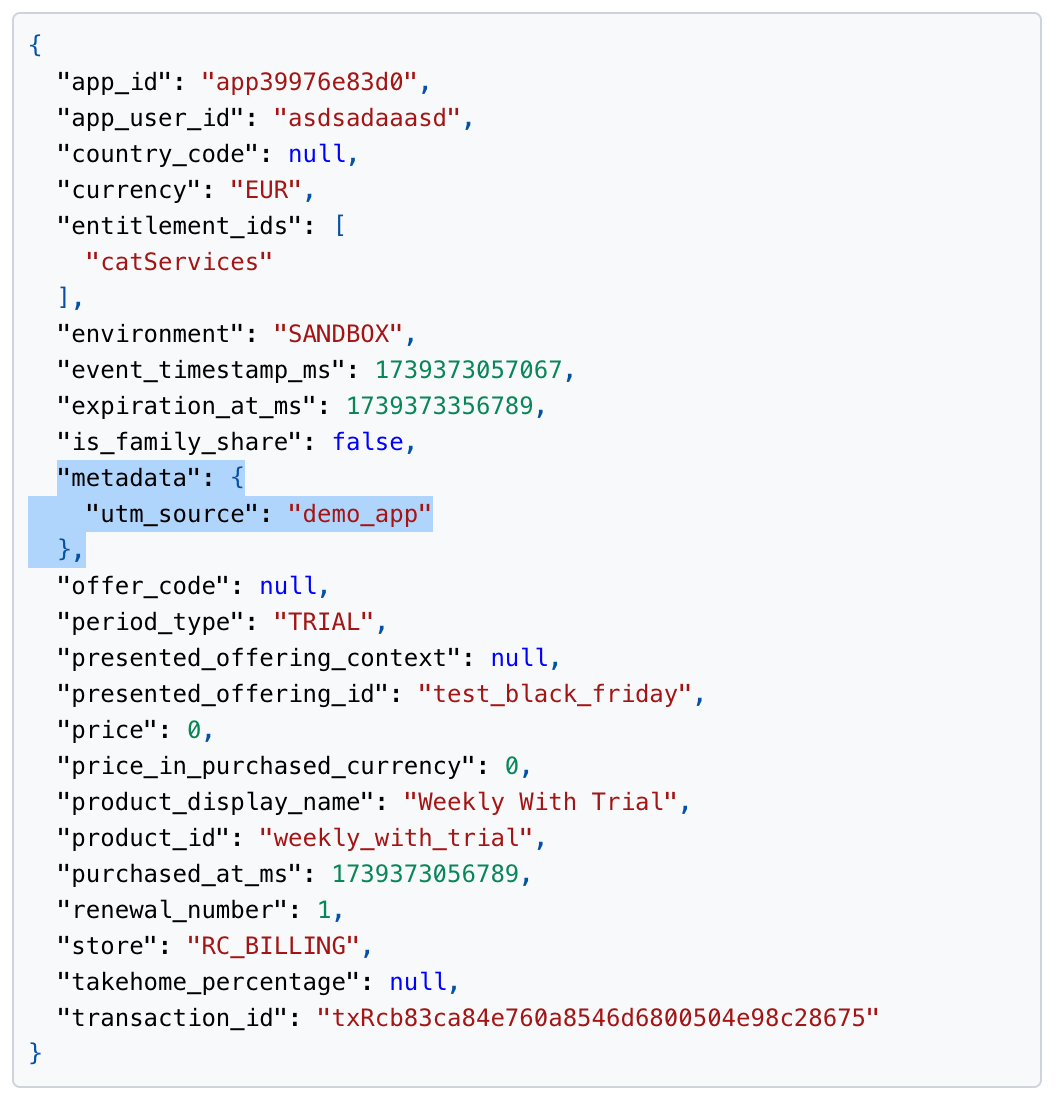
After receiving purchases with metadata included, it can be accessed in the INITIAL_PURCHASE and NON_RENEWING_PURCHASE webhook events.
- RevenueCat Billing: The same values are also sent to the Stripe Customer object metadata.
- Paddle Billing: The same values are added to the Paddle transaction's
custom_data, which Paddle copies to the subscription and its renewals. RevenueCat's ownrc_keys incustom_datatake precedence over metadata keys with the same name. Purchases made with the Web SDK needpurchases-js1.53.0 or later.
You can see how to use the webhook integration to trigger automations and workflows here.
Opt out of the automatic collection of UTM parameters
You can opt-out of the automatic collection of UTM parameters in the Web SDK by setting the autoCollectUTMAsMetadata flag to false in the configure method.
Here's an example:
- Web (JS/TS)
    const appUserId = authentication.getAppUserId(); // Replace with your own authentication system
    const httpConfig = {}; // Any setting you want to customize in purchases-js HTTP client.
    const flagsConfig = {autoCollectUTMAsMetadata: false};
    const purchases = Purchases.configure({
        apiKey: WEB_BILLING_PUBLIC_API_KEY,
        appUserId: appUserId,
        httpConfig: httpConfig,
        flags: flagsConfig,
    });