Sales Tax & VAT
How to configure and charge sales tax & VAT to customers purchasing through RevenueCat Billing



If you're selling subscriptions and purchases through RevenueCat Billing, you may need to collect sales tax and VAT in transactions, depending on your business setup and local tax laws.
Unlike the mobile app stores, selling directly to customers on the web means complying with any tax obligations that apply, based on:
- The location of your business
- The tax jurisdiction of your customers (including country, state/province and county)
- The category of product you're selling (e.g. software services, digital content etc.)
- The amount of revenue you have in a given region
While RevenueCat and your tax provider give you tools to monitor and charge sales tax and VAT for your business, you should seek tax advice from a qualified tax accountant if you're uncertain about your tax obligations, or how specific regional tax laws apply to you.
Supported tax providers
RevenueCat Billing calculates and applies sales tax and VAT through a tax provider that you connect to your RevenueCat Billing config. You can choose between two providers:
- Stripe Tax — Stripe's built-in tax product. A good fit if you already use Stripe and want threshold monitoring, registration, and reporting managed in your Stripe dashboard.
- Avalara AvaTax — Avalara's dedicated tax compliance platform. A good fit if you already manage tax with Avalara or need its broader compliance and reporting tooling.
You select a tax provider for each RevenueCat Billing config. Once enabled, RevenueCat Billing uses that provider to calculate and charge tax on new purchases in any RevenueCat Billing purchase flow.
Customers will see a tax breakdown in the checkout when a tax rate is applied to their purchase, regardless of which provider you use:
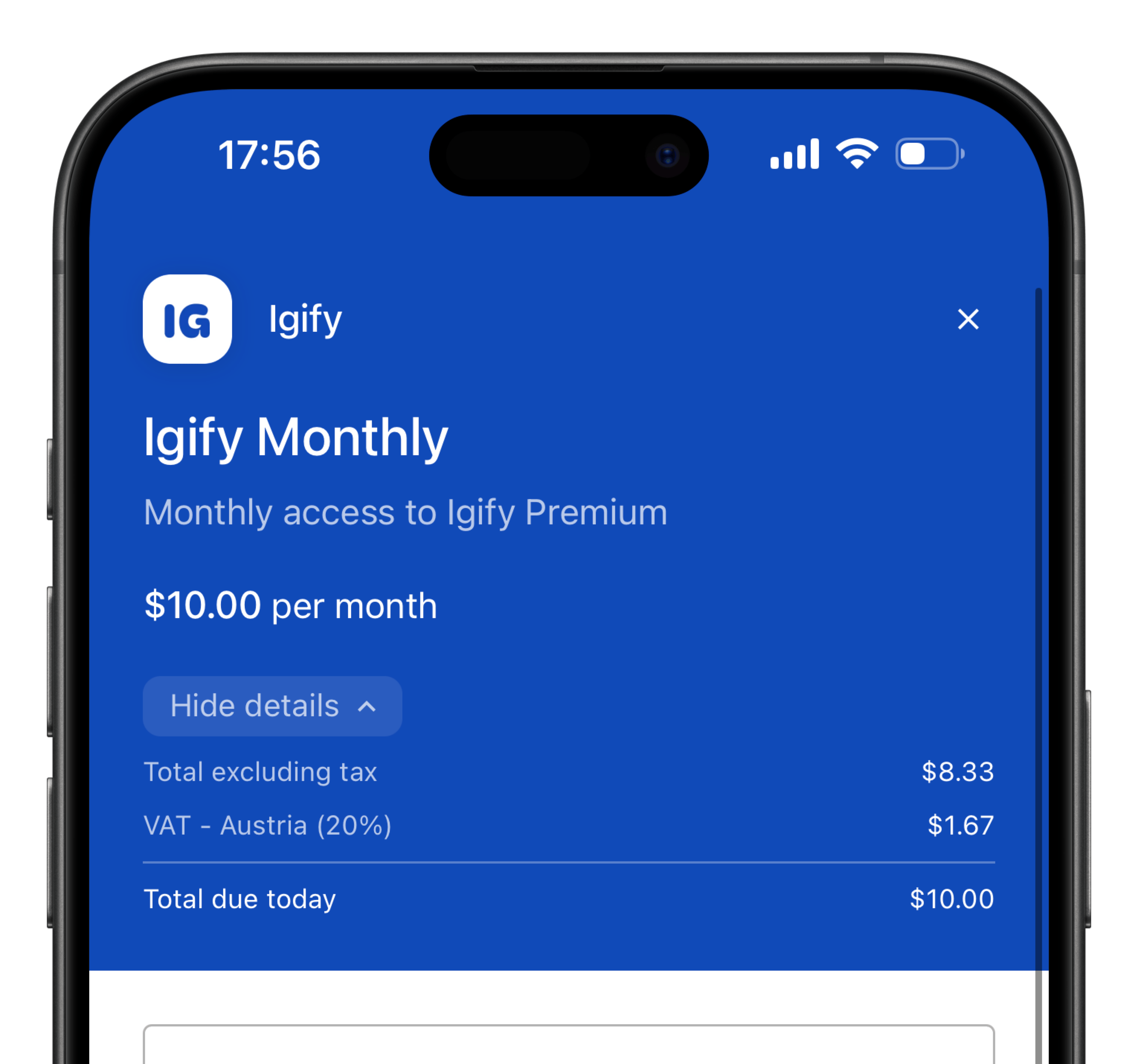
How RevenueCat Billing applies tax
The following applies to tax collection in RevenueCat Billing regardless of the provider you choose:
- B2C product support only — the invoicing and tax needs for business customers differ from consumer products. RevenueCat doesn't collect customers' tax IDs, issue reverse charge VAT invoices, or issue invoices that meet the requirements of business-to-business transactions.
- Pre-defined tax behavior — transactions for customers in the US and Canada use tax-exclusive pricing (applicable taxes are added to the product price), and the rest of the world uses tax-inclusive pricing (all taxes are included in the product price).
- Tax reporting in your provider's dashboard — the RevenueCat dashboard doesn't provide tax reports or analytics. Use the reporting tools in your tax provider's dashboard.
- Reversal transactions — these are created for refunds, but not currently for disputes or chargebacks.
Stripe Tax
RevenueCat integrates with Stripe Tax, which helps you:
- Understand when you need to register for tax collection in a specific location (threshold monitoring)
- Manage and report on registered tax rates and collected taxes
- Calculate and collect any relevant taxes directly in the RevenueCat Billing checkout
Stripe Tax fees
If you enable Stripe Tax in your RevenueCat dashboard, Stripe will charge you a per-transaction fee for transactions where taxes are collected. This is in addition to the base Stripe transaction fee.
Supported countries
A full list of countries where Stripe Tax allows you to calculate and collect taxes is available in Stripe's documentation.
How to configure Stripe Tax with RevenueCat Billing
RevenueCat Billing uses its own product configuration, so you don't need to add or configure products or product tax codes in Stripe. The same applies to default tax codes — only the product tax code configured in the RevenueCat dashboard is used.
Prerequisites
Before you get started, you should:
- Make sure you've approved any pending permissions from the Stripe RevenueCat App. The Stripe Tax integration requires specific permissions to interact with your account.
- If you're using the Web SDK: Update your SDK version to v1.4.3 or higher.
1: Enable Stripe Tax in your Stripe dashboard
If you have not already configured Stripe Tax, follow the instructions in your dashboard to enable automatic tax calculation (these steps may vary depending on your business location).
2: Enable tax collection in the RevenueCat dashboard
Any tax rates added in your Stripe Tax dashboard in live mode may be applied to RevenueCat Billing transactions after this step. Make sure you haven't added registrations to live mode that are only for testing purposes.
- Navigate to the RevenueCat Billing config in your RevenueCat account.
- In the Billing tab, find the Tax section and enable sales tax and VAT calculation.
- Select Stripe Tax as the tax provider.
- Set the product tax code for your product. The default tax code is General - Electronically Supplied Services (
txcd_10000000), which should be applicable for a lot of app-based businesses. For more guidance on product tax codes, see Stripe's documentation. - Save the changes.
3: Test tax collection in test mode
To test that tax rates are correctly applied to RevenueCat Billing purchases:
- Add tax registrations in Stripe's test mode — you need to configure separate tax registrations in test mode, which are separate from any registrations in live mode.
- Load a sandbox Web Purchase Link, or initiate a purchase with the Web SDK in sandbox mode.
- In the checkout, select a billing address for a location where a tax rate is active in Stripe's test mode.
- If the tax registration is applicable for your product in the selected location, you should see that taxes are shown on the checkout page and in the purchase receipt.
Note that not all jurisdictions apply sales tax collection to software products; you might not see a tax rate applied even though you've added a registration.
As a test case, with the product tax category set to General - Electronically Supplied Services (txcd_10000000), you can check out with a Texas billing address and you should see a tax rate applied.
4: Add live mode tax registrations for locations where you'll collect tax
Taxes are only applied to a production purchase when there's a relevant tax registration added to the Registrations page in your Stripe dashboard's live mode.
You can use Stripe's built-in threshold monitoring to understand when you need to register for sales tax in a given location. The process for registering varies depending on the authority you're registering with, and Stripe provides automated registration in certain regions.
As soon as you've added a registration in the Stripe dashboard live mode, RevenueCat Billing will start applying relevant taxes for new purchases in that location.
Avalara AvaTax
RevenueCat integrates with Avalara AvaTax to calculate and apply sales tax and VAT to RevenueCat Billing purchases. If you already manage tax compliance in Avalara, you can connect your Avalara account and have RevenueCat Billing calculate tax through AvaTax at checkout.
Avalara treats your sandbox and production environments as entirely separate accounts, so you configure credentials for each one independently.
How to configure Avalara AvaTax with RevenueCat Billing
1: Enable tax collection and select Avalara
- Navigate to the RevenueCat Billing config in your RevenueCat account.
- In the Billing tab, find the Tax section and enable sales tax and VAT calculation.
- Select Avalara as the tax provider.
2: Set the tax code
Set the tax code to use for tax calculation. This product tax code applies to all purchases across both your sandbox and production environments. For guidance on choosing the right code, see Avalara's tax code lookup.
3: Add your Avalara account credentials
Avalara treats your sandbox and production accounts separately, so enter the credentials for each environment independently. For each account:
- Enter your Account ID. You can find this in your Avalara account on the Settings page, under License and API keys.
- Enter your License key. This is available on the same License and API keys page.
- Select the company code to use. If your account has a single company, only one company is listed. If you have a multi-company setup, select the company you want to use.
4: Save and start collecting tax
Once you've entered the credentials for both your sandbox and production accounts, save the changes at the bottom of the page. RevenueCat Billing immediately starts using Avalara to calculate and charge tax for new purchases in any RevenueCat Billing purchase flow.
FAQ
How is a customer's tax location determined?
When a customer begins a purchase through a Web Purchase Link or Web SDK purchase flow, their tax location is determined based on the billing address they enter, using country, state and postcode/zipcode information. The country field is pre-filled based on the customer's IP address location.
How does Sales Tax and VAT affect the price of my products?
For customers with a billing address in the USA & Canada, tax-exclusive mode is used (tax is added to the product price). For all other locations, tax-inclusive mode is used (tax is already included in the product price).
Where can customers see tax information?
Any applicable taxes are broken down in the checkout, in email receipts, and in the PDF invoices and receipts available in the customer portal.
How can I add additional tax information (such as my company's VAT ID or legal information) to my invoices?
You can add custom information in the invoice footer, which can be configured in the Settings tab for your RevenueCat Billing config, under the App Information section. Custom invoice footers are included in all invoice and receipt PDFs.
Can I use both tax providers at the same time?
No. You select one tax provider per RevenueCat Billing config. If you have multiple RevenueCat Billing configs in your project, you can configure each one independently.
How can I report on collected taxes?
Reporting depends on your tax provider. For Stripe Tax, use Stripe Tax reports in your Stripe dashboard. For Avalara AvaTax, use the reporting tools in your Avalara account.
How does tax collection work with wallet payment methods?
If you have enabled Apple Pay or Google Pay, the billing address in the wallet payment method is used to determine the customer's tax location.